Enable automatic replies when Users are out of office
Starting from version 2.6.1, you can configure automatic replies in Teams to be sent during a specified time range when AM users are out of office. This document provides detailed instructions on how to set up this configuration.
Before you start
Ensure the following prerequisites are met:
- You are using LeapXpert version 2.6.1 or later.
- You have Company Admin permissions to manage Feature Configurations.
- Automatic replies are sent based on the AM user’s timezone, regardless of the client’s timezone.
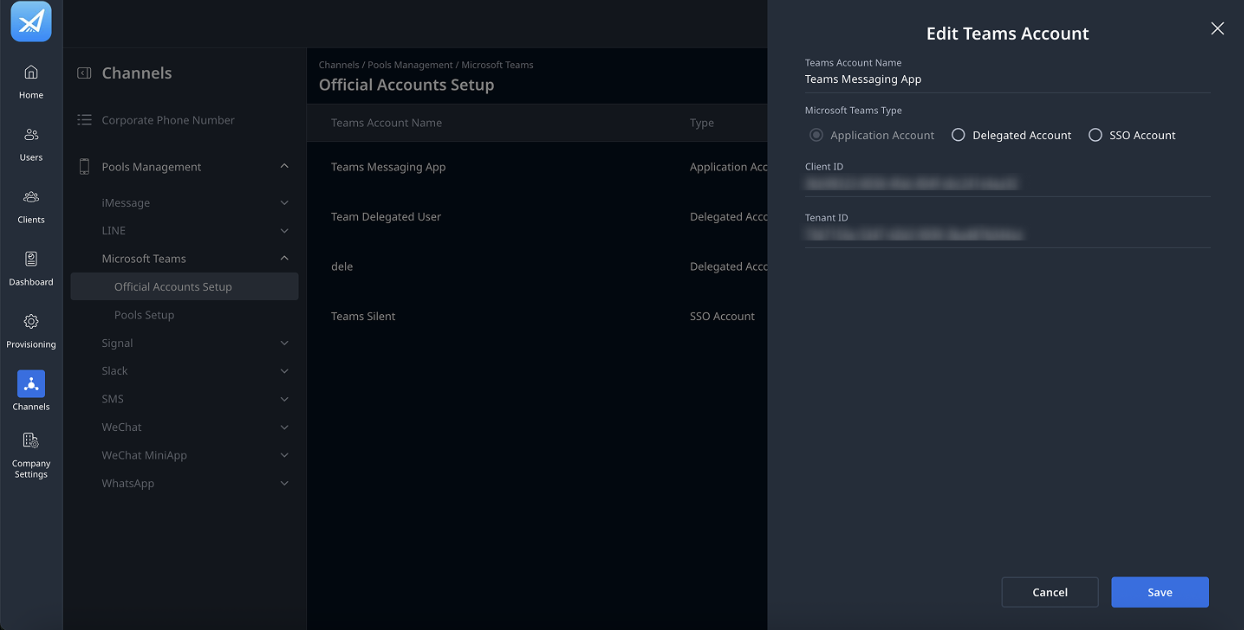
- Go to the Org Admin portal, check if the Application account has been added to the Official Account Setup.
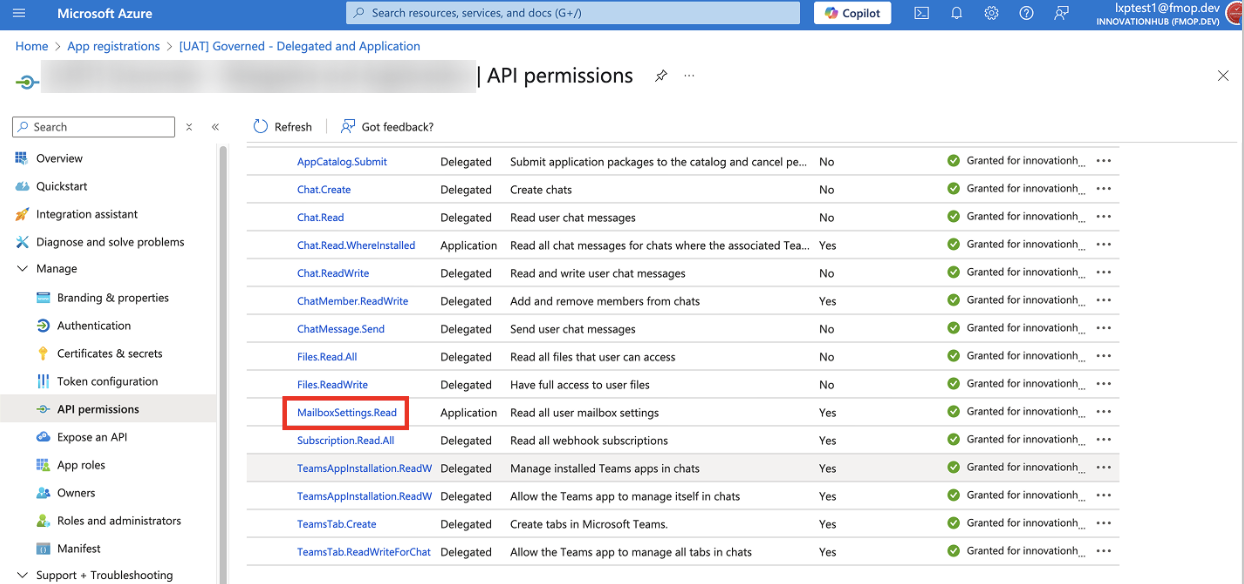
- You have the App Registration available on the Azure portal and ensure the Application permission: MailboxSettings.Read has been added to the app. Ensure the Messaging App on Azure is the App registration for Messaging and File Transfer.
Note: If the Application account has not been created in the Org Admin portal, follow the steps below to configure it. If the account already exists, skip ahead to the Enable automatic replies when users are out of the office section.
Create a new Messaging App in the Org Admin portal
On the Azure portal:
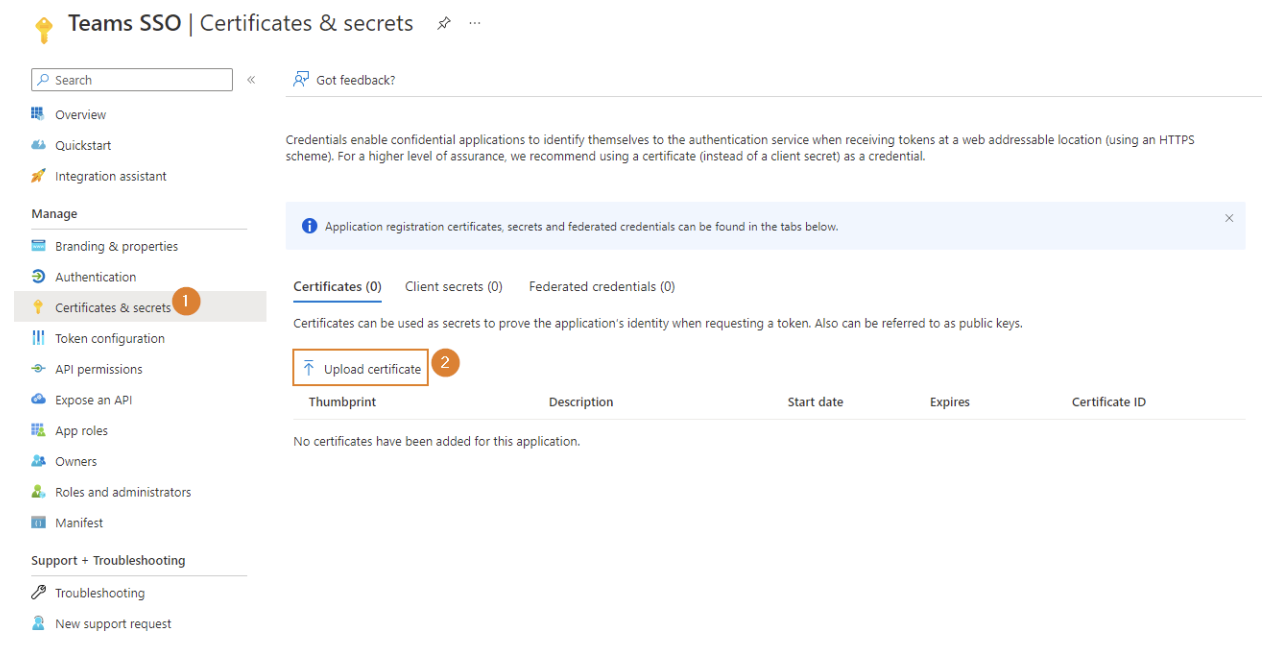
- You can generate certificate credentials in the Organization Admin. Follow the instruction in this document: Generate certificate credential keys for Microsoft Entra ID app registration.
- Once done, upload the downloaded PEM file to the Teams Messaging & File Transfer application. You can refer to this Microsoft document for further instructions: Import a certificate to Microsoft Entra ID app registration.
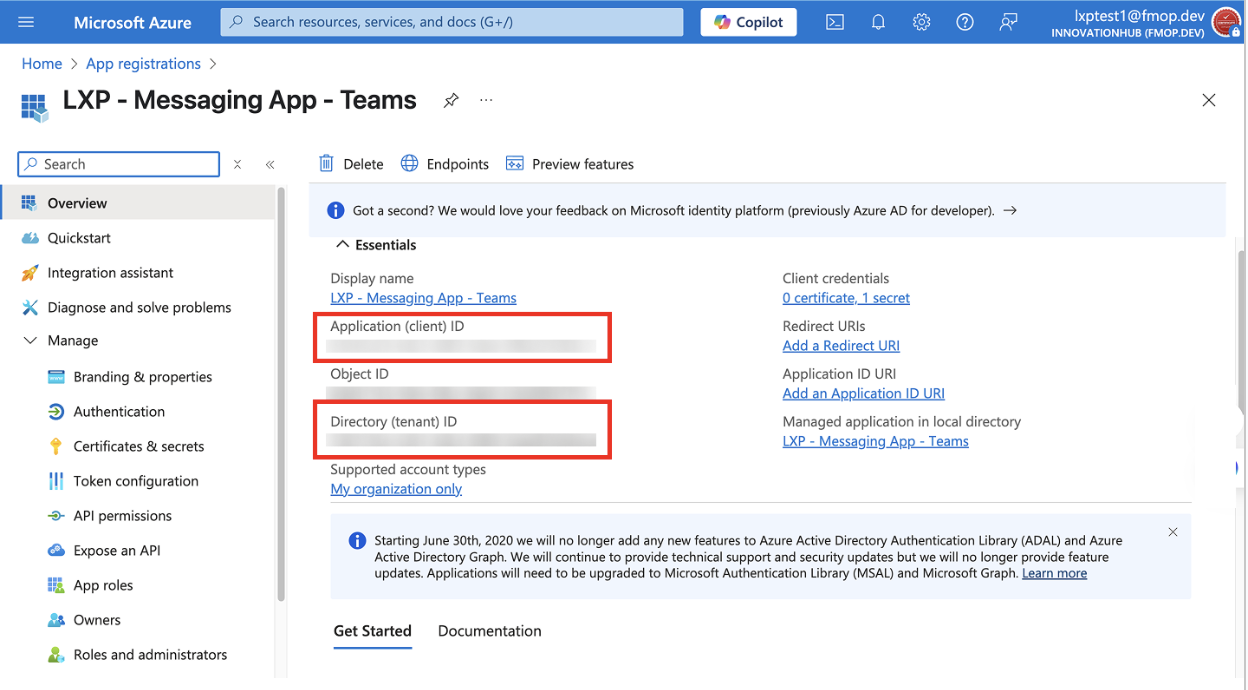
- Go to App Registration, collect the following values:
- Client ID.
- Tenant ID.
On the Org Admin portal:
-
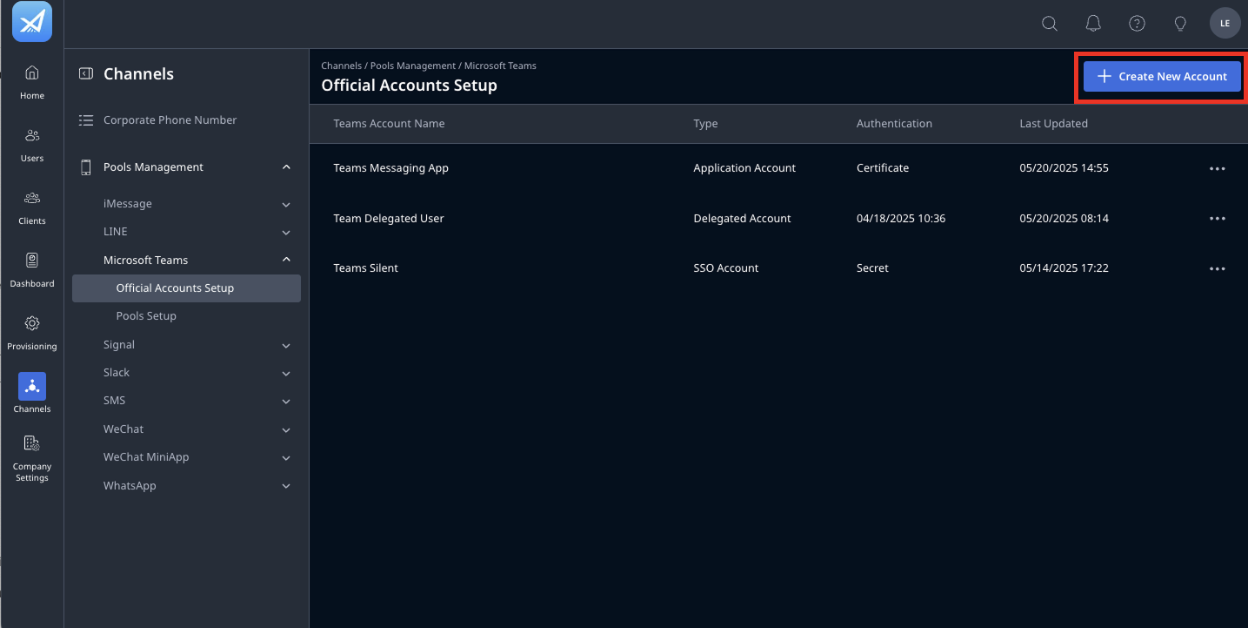
Go to Org Admin, select Channels > Pools Management > Microsoft Teams > Official Accounts Setup > + Create New Account.
-
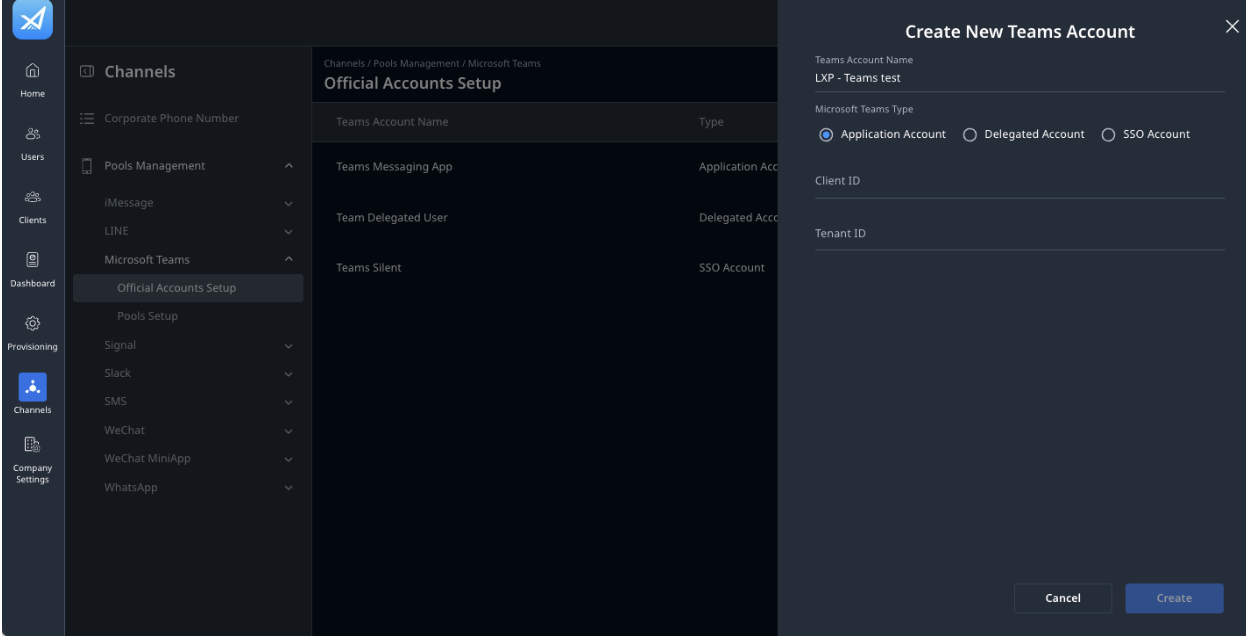
Select Application Account and type the Teams Account Name.
-
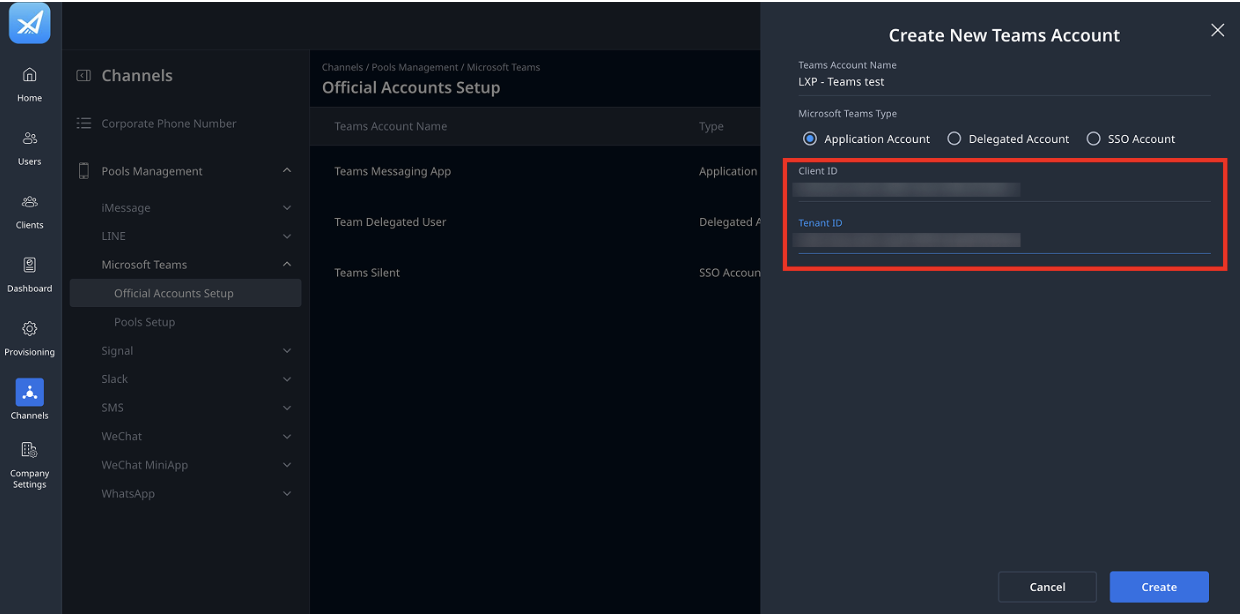
Paste the client ID, tenant ID values to the Org Admin.
-
Click Create.
Authenticate this Application Account by doing the following:
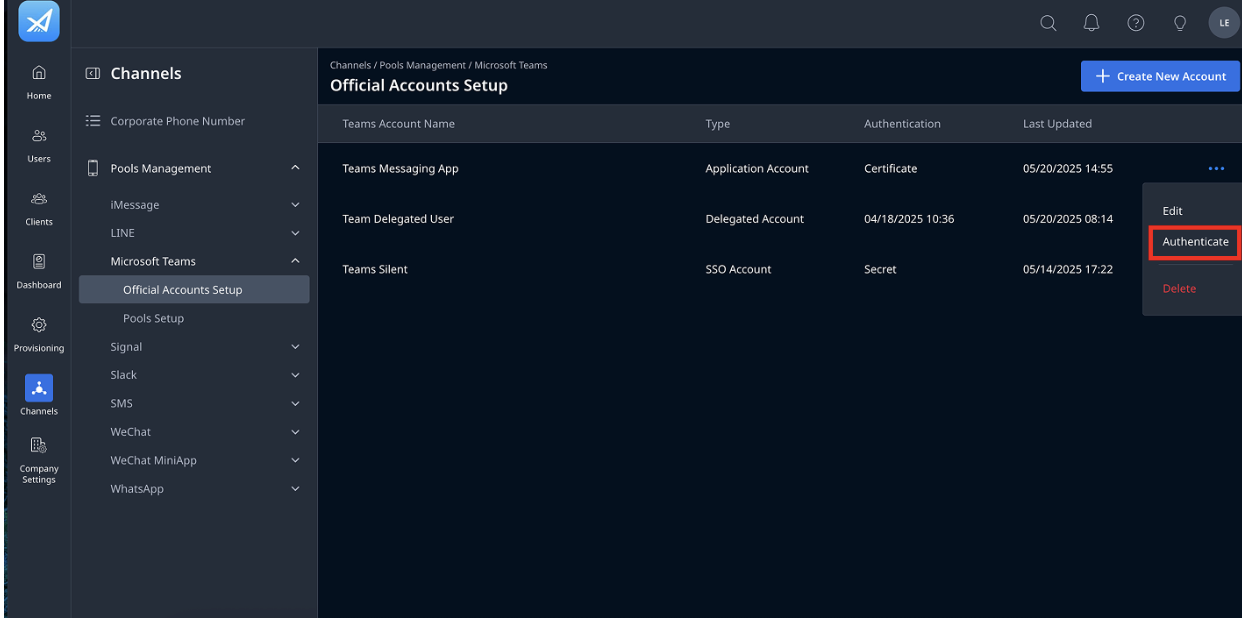
- In the Official Account Setup tab, click More (...).
- Then click Authenticate.
- If you use certificate credentials for Teams authentication, you can also select the certificate credentials from the dropdown list or Generate a new key pair.
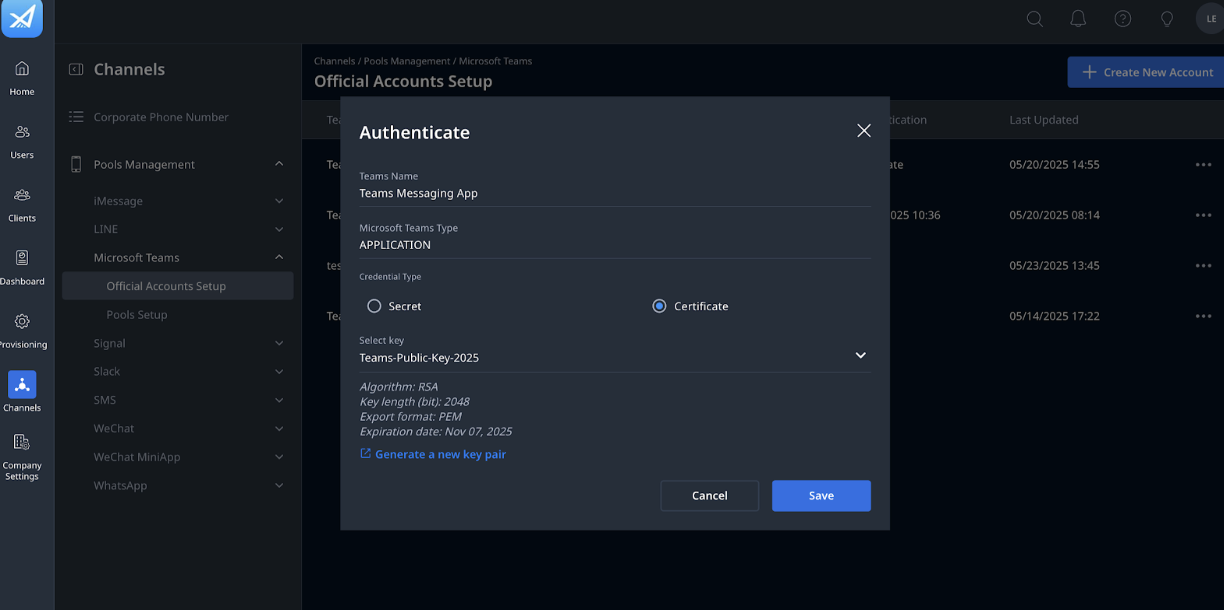
- Once done, click Save.
Assign the Application Account to the existing pool created for the Delegated account:
- Go to Channels > Pools Management > Pools Setup.
- Click Edit.
- Select the Application Account from the dropdown.
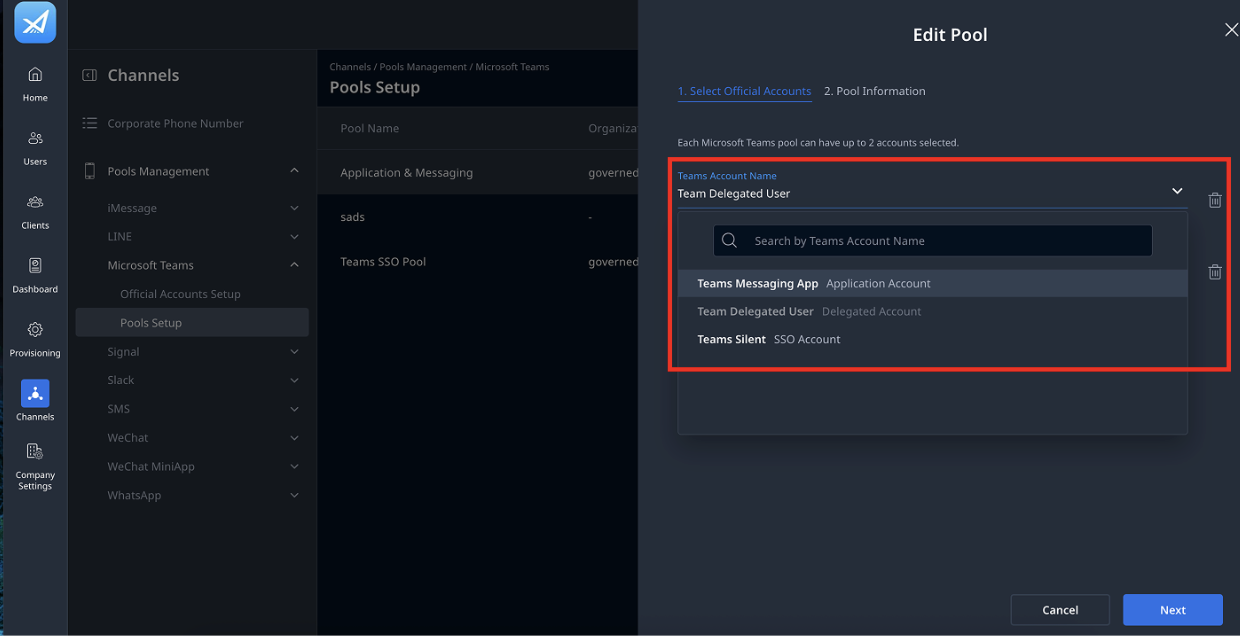
- Click Next.
- Double-check the OU > click Continue.
Enable automatic replies when Users are out of the office
Enable on Microsoft Outlook
- In Microsoft Outlook, click the Settings icon.
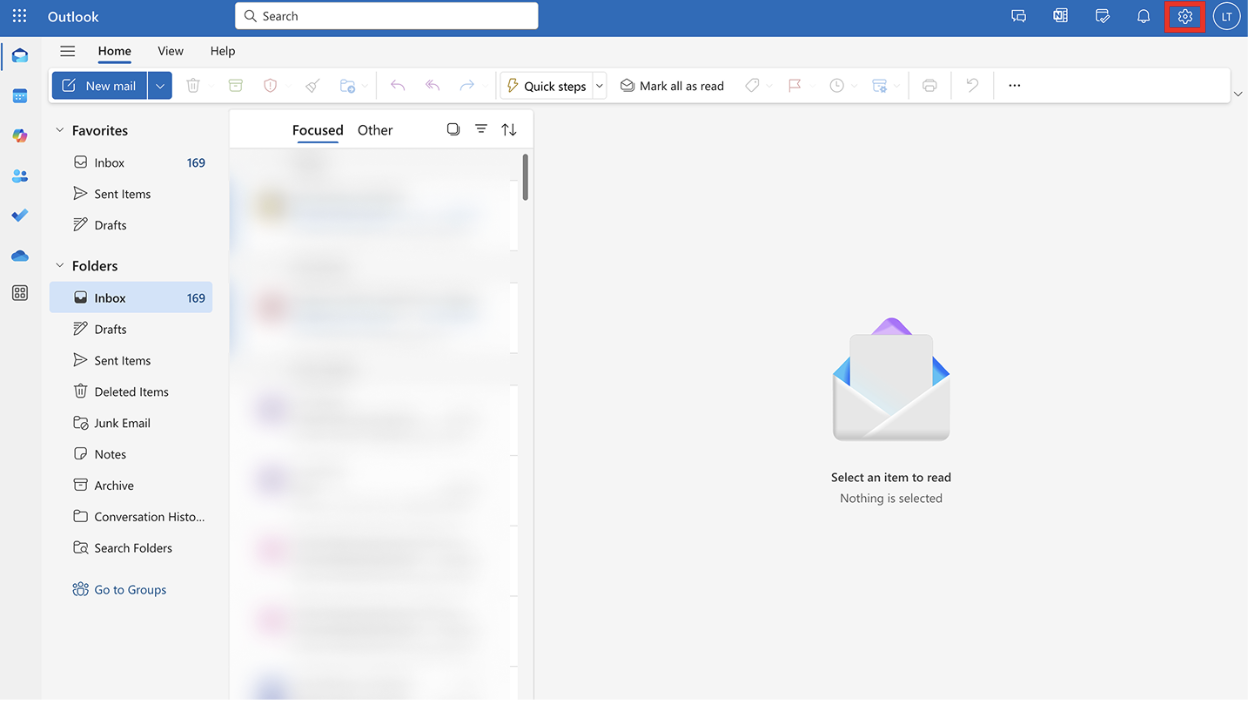
- Select Account > Automatic replies.
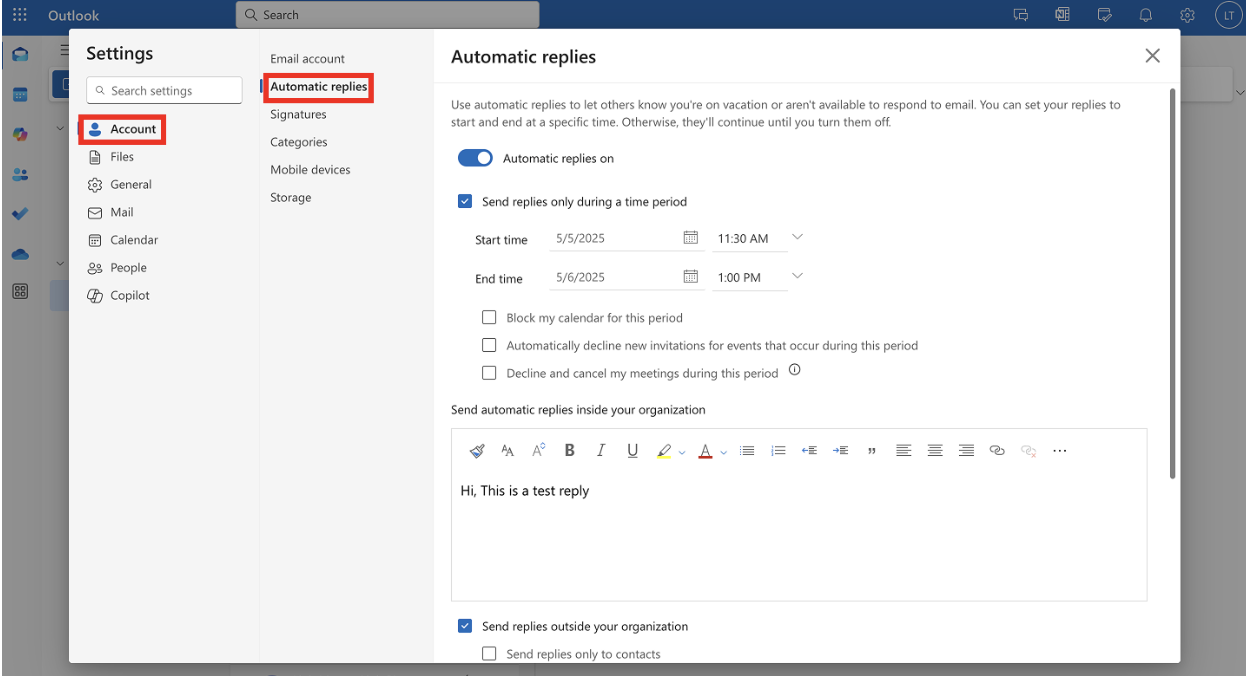
- Toggle the Automatic replies on to ON.
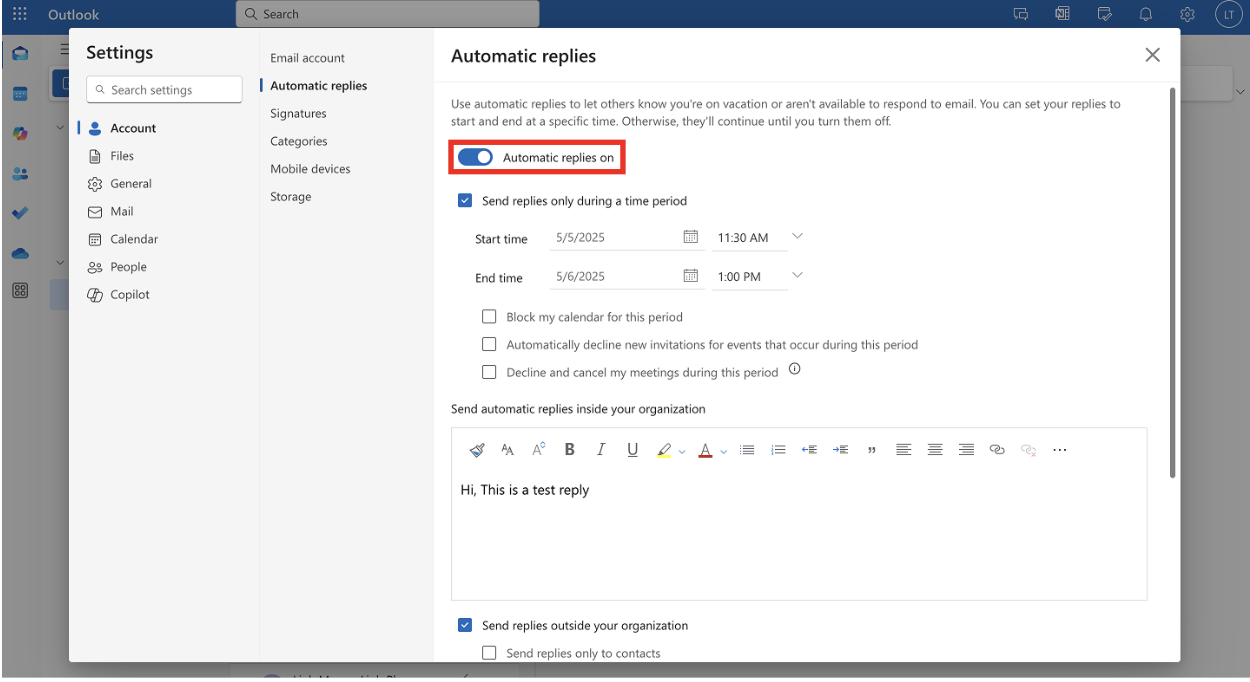
- Check Send replies only during a time period and select the time range.
- Enter the message content of the automatic reply for both:
- People inside your organization.
- People outside your organization.
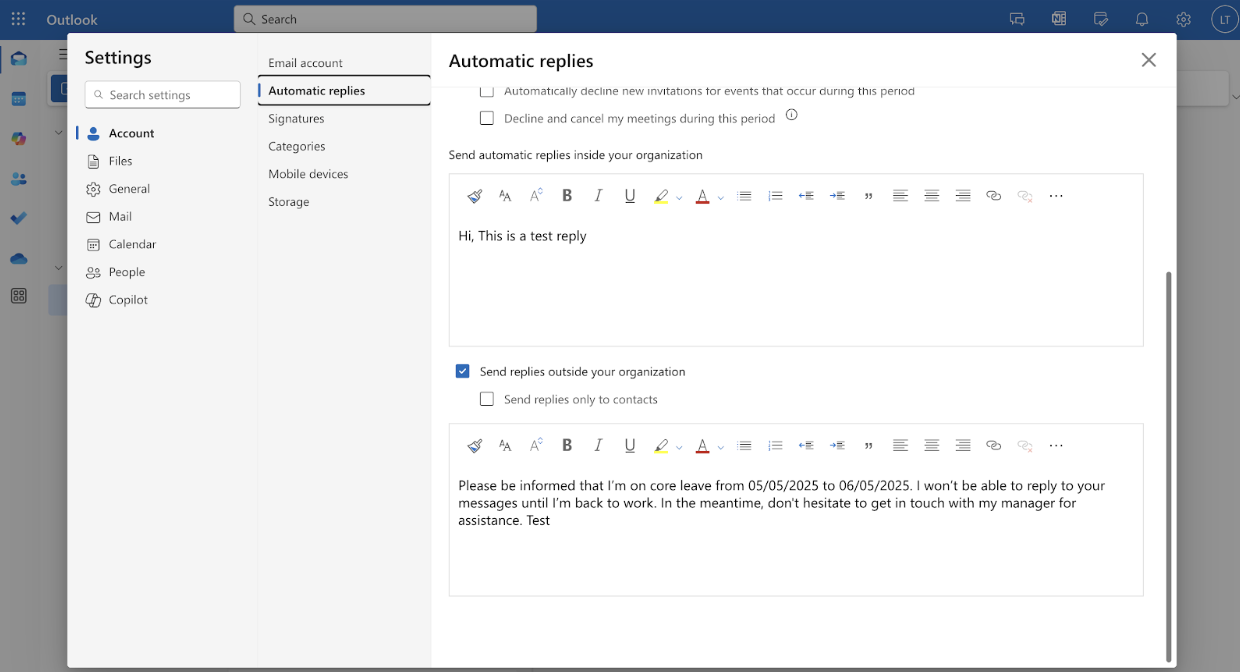
You have successfully enabled the automatic replies in Microsoft Outlook.
Enable on the Org Admin portal
To enable automatic replies on the Org Admin portal, do as follows:
- Sign in to the Organization Admin portal.
- Go to Company Settings > Feature Configurations > General.
- Search "Automatic replies sync".
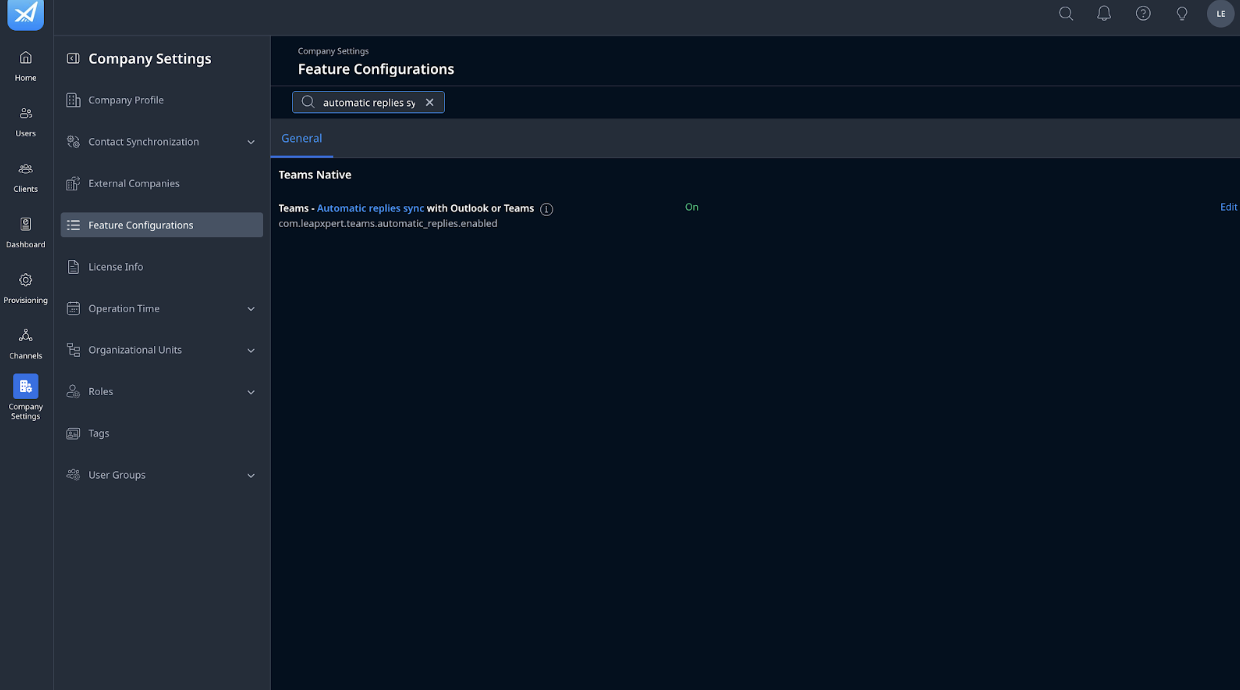
- Click Edit.
- Click on Custom value to turn the value to ON.
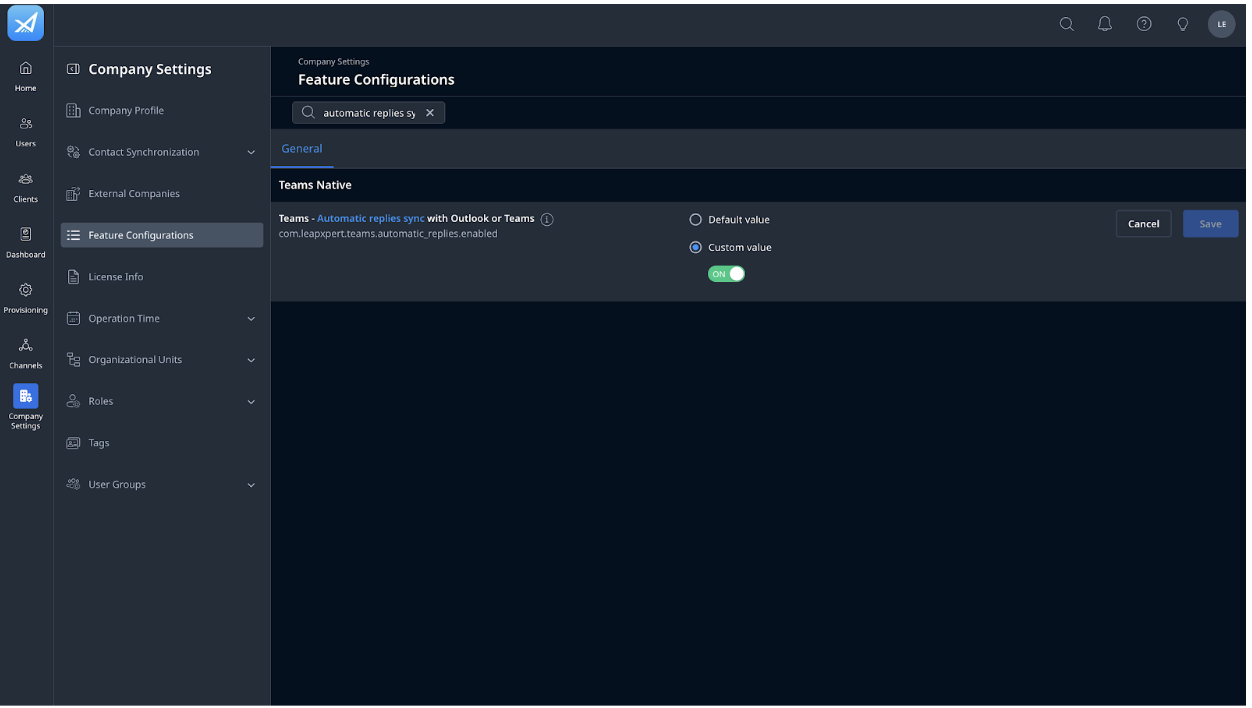
- Once done, click Save.
You have successfully enabled the automatic replies on the Org Admin portal.
Note:
- The configuration will base on the timezone of the Microsoft setting to send the automatic replies.
- If the content includes the text warned by the DLP policies, the message will still be sent.
- If the content includes the text blocked by the DLP policies, the message is blocked.
- For more information about the DLP, see What is Data Leakage Prevention?
Enable on the Teams app
To enable the automatic replies on the Teams app, do as follows:
- Go to the Leap Work for Teams app.
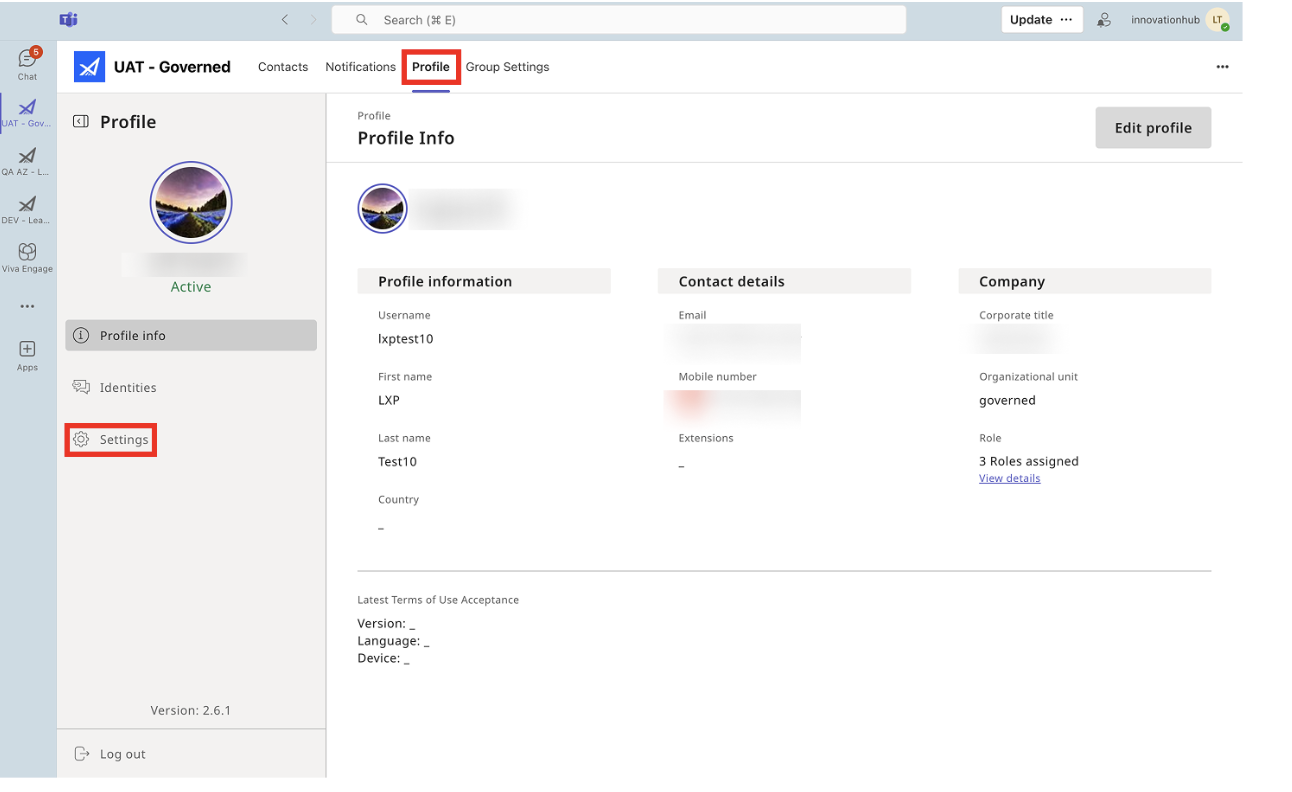
- Go to Profile > Settings.
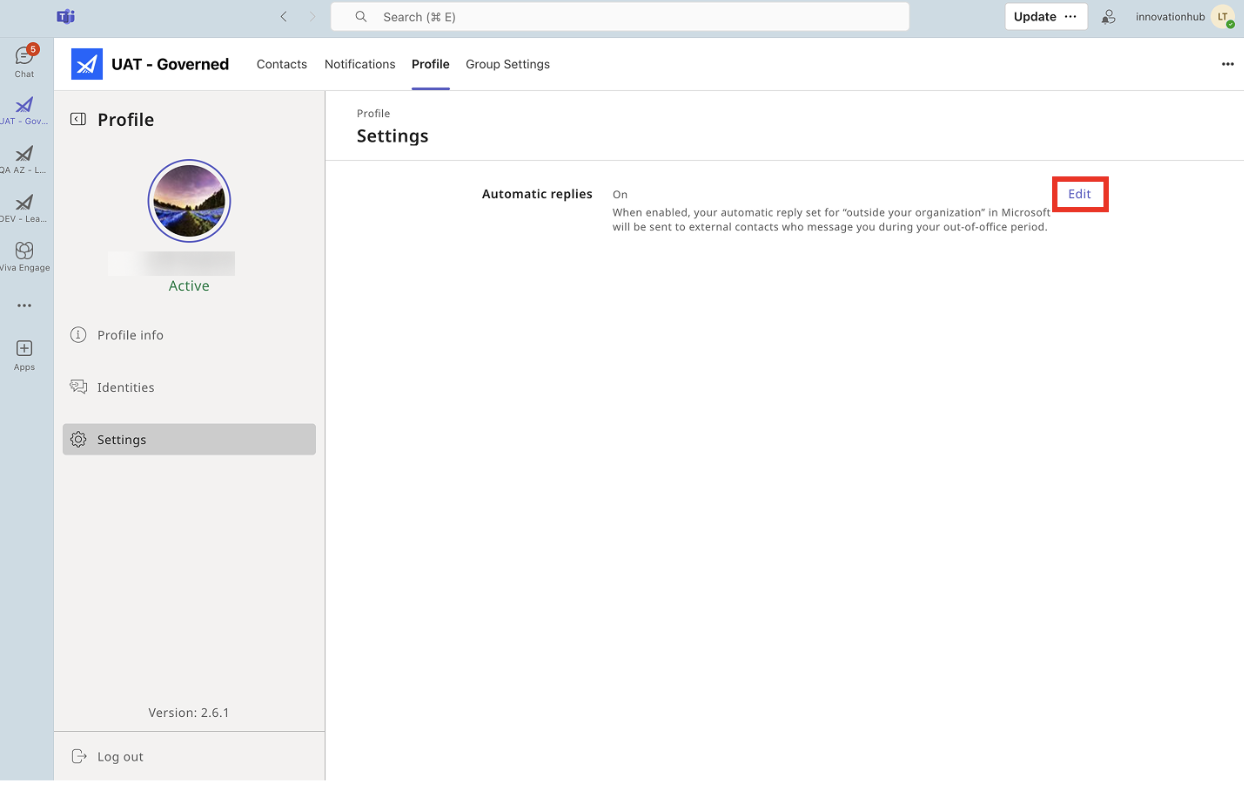
- In the Automatic replies, select Edit.
- Toggle to ON, then click Save.
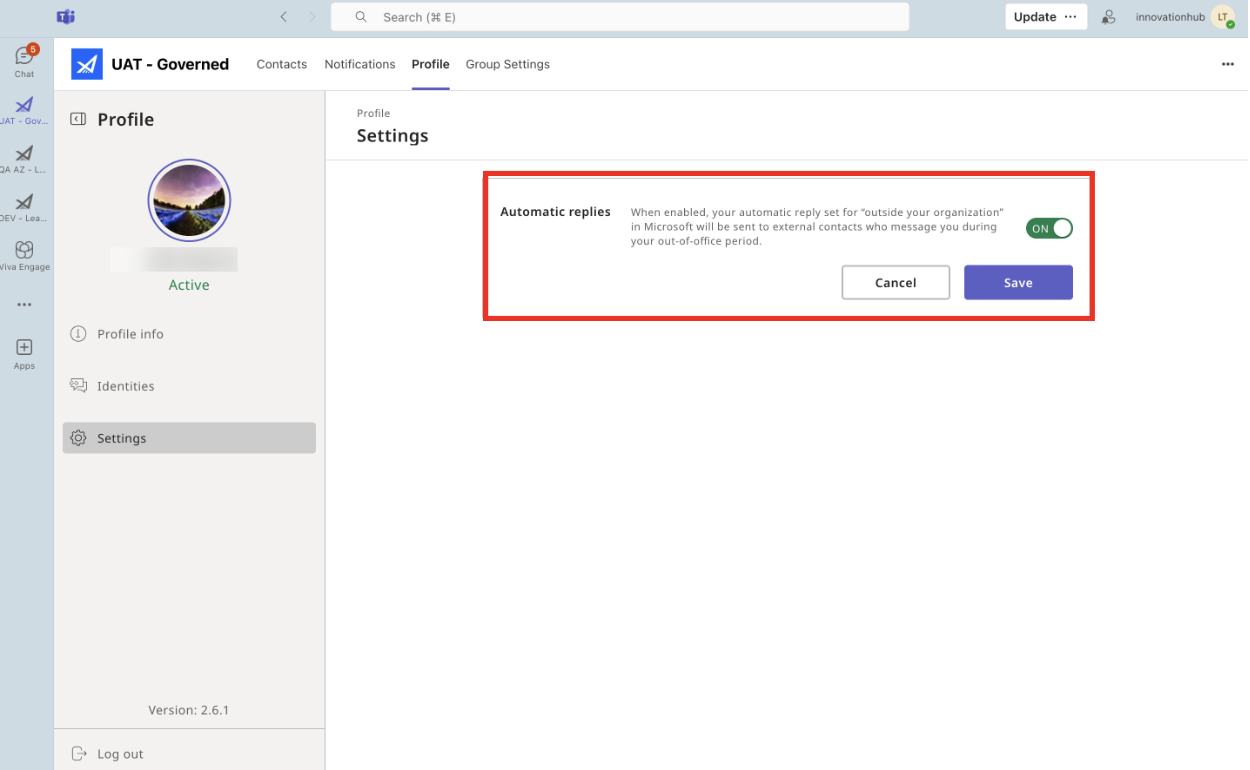
How the feature works
When setting a time range for automatic replies, the system uses the AM user’s time zone to determine when replies should be sent.
For example, if you configure the time range from 11:30 AM on May 5, 2025 to 1:00 PM on May 6, 2025 (GMT+8):
- Any client message received within that time range (based on GMT+8) will trigger the automatic reply.
- The LeapXpert system will automatically convert time zones as needed to ensure replies are delivered at the correct time, regardless of the client’s location.
- Once an automatic reply has been sent for a specific time range and message content, the system will not send the same reply again, even if the client sends more messages during that period.
- However, if you update the time range (e.g., change the end time to 11:30 AM on May 6, 2025 (GMT+8)) or modify the message content, the system will recognize it as a new configuration and send the automatic reply again the next time the client sends a message.
For group chats containing more than 1 user (X Users with automatic replies set up), the client will receive X automatic replies in their channel.