About External companies
This document describes what external companies are, how they work, and how to manage them in the Organization Admin.
What are external companies?
External company (EC) is a method to:
-
Group and manage customer contacts from different organizations.
-
Provide controlled access to contact information.
-
Ensure data privacy between different client organizations.
Purpose of EC
-
Organize contacts from different companies.
-
Control visibility of contact information.
-
Manage client relationships more effectively.
Examples
-
Company A is working with customers from companies B and C.
-
Company B might be the parent corporation of company C.
-
The goals of EC are:
-
Group contacts separately.
-
Ensure employees from company B can only see B's contacts.
-
Prevent employees from accessing contacts from company C.
-
Note:
- An external company can only have parent external company.
- Employees can only view and search for clients in the external company they are assigned to, not in others, even the parent, same level or child external companies.
Examples
-
Tech Inc. (Parent EC) includes
-
North America division: US Sales Team.
-
Europe division: EU Sales Team.
-
-
A US Sales Team member can ONLY see clients in North America Division and CANNOT see clients in Europe division and Tech Inc.
Create an external company
To create an external company, do as follows:
-
Sign in to the Organization Admin.
-
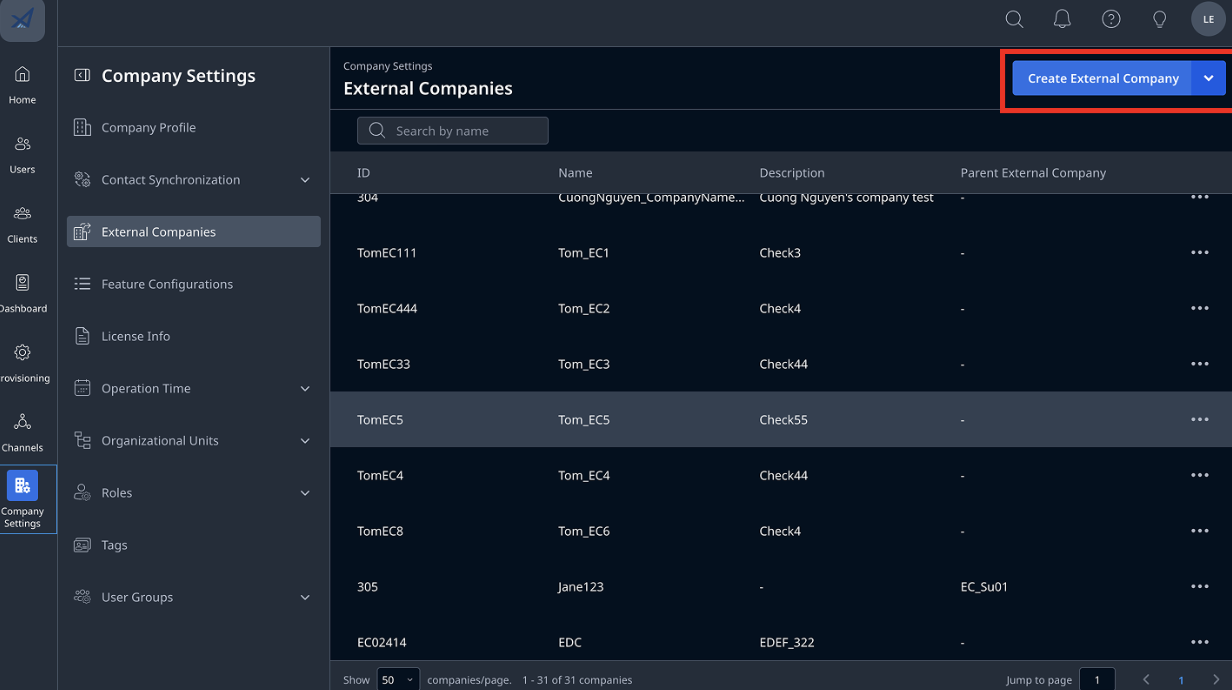
Go to Company Setting > External Companies. Click Create External Company.
-
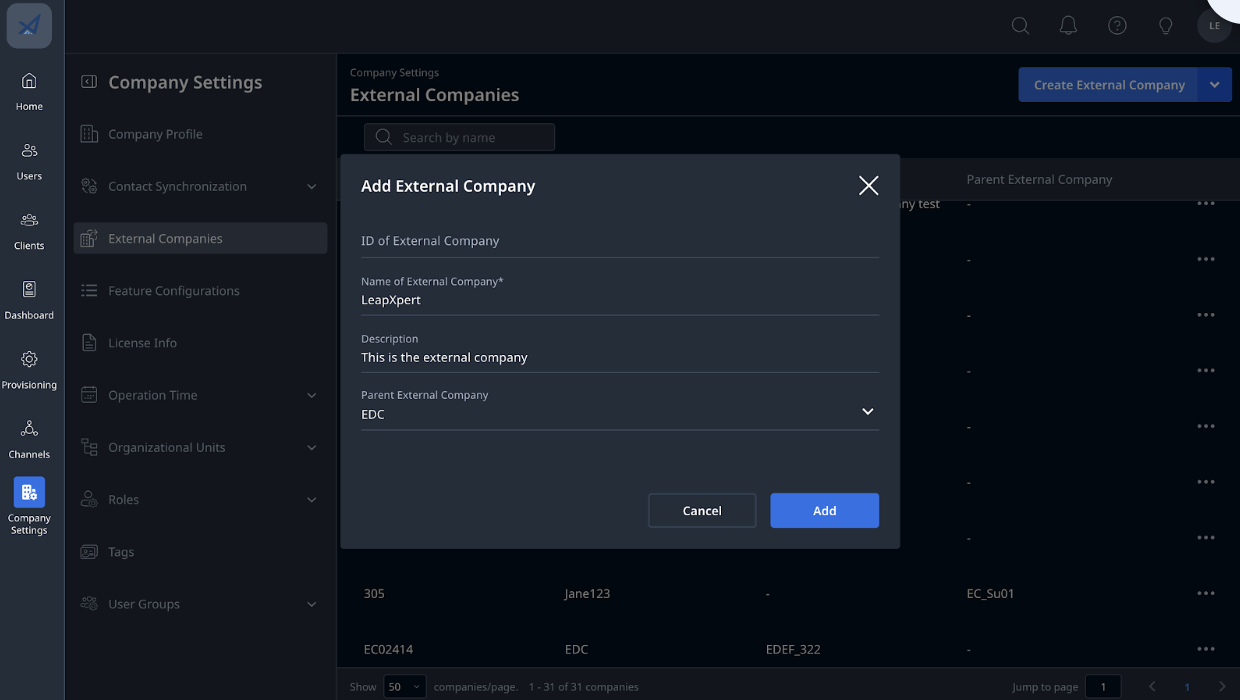
The Add External Company dialog opens. Input the following parameter:
-
ID of External Company: (Optional) Manually input the ID of the external company.
-
Name of External Company: (Required) Input the name of the external company.
-
Description: (Optional) Input the description of the external company.
-
Parent External Company: (Optional) Select the parent external company for the current EC.
-
-
Once done, click Add.
You have successfully created an external company.
Manage external company
-
On the left panel, go to Company Setting > External Company.
-
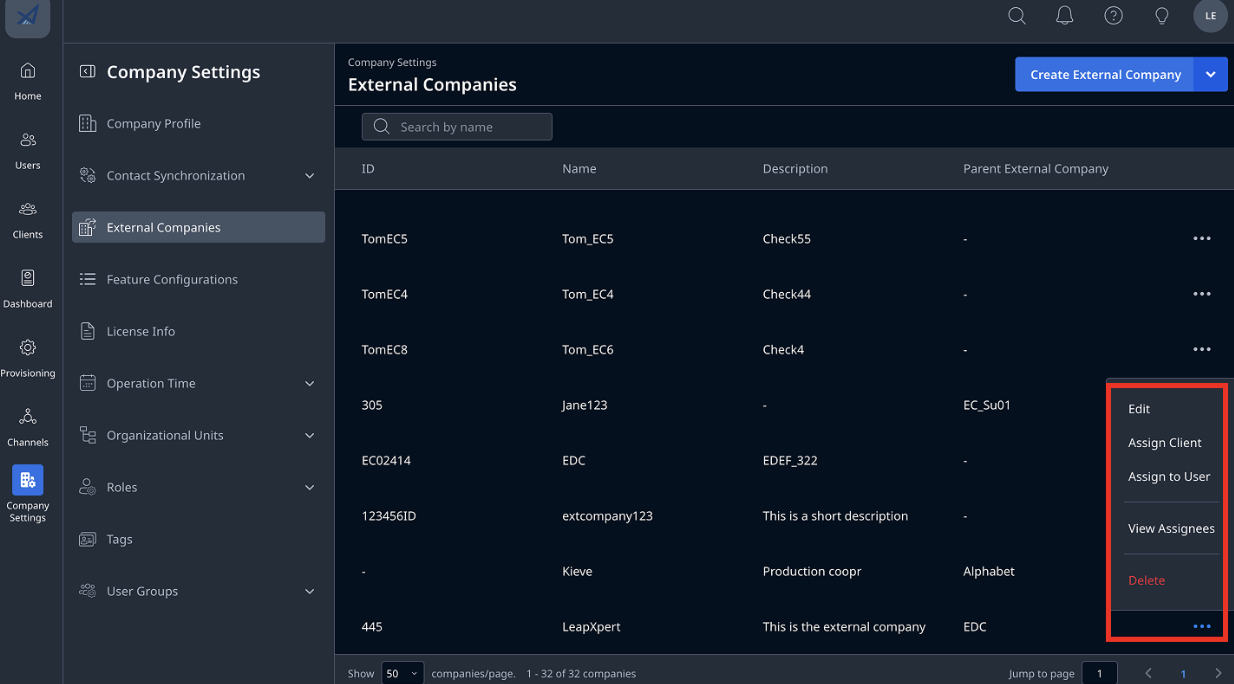
A list of external companies appears. Click More (…) at the external company you want to edit:
-
Edit: edit the external company.
-
Assign User: assign a user to the external company. See Assign users to an external company
-
Assign Client: assign a client to the external company. See Assign clients to an external company
-
View Assignee: view a list of users and clients assigned to the external company. See View and export assignees in an external company.
-
Delete: delete an external company.
-