Create a Scheduled Report
Scheduled Reports are .CSV files automatically sent to users via email or uploaded to an FTP server at pre-configured intervals.
Unlike Dashboard reports (which typically cover data from 00:00 to 23:59), Scheduled Reports can be set to start at any time during the day.
This article provides instructions on how to create, configure, and edit Scheduled Reports in the Org Admin portal, along with an overview of the available report types.
Before You Start
- You must be using LeapXpert version 2.2.0 onwards.
- The company admin must have the following permissions:
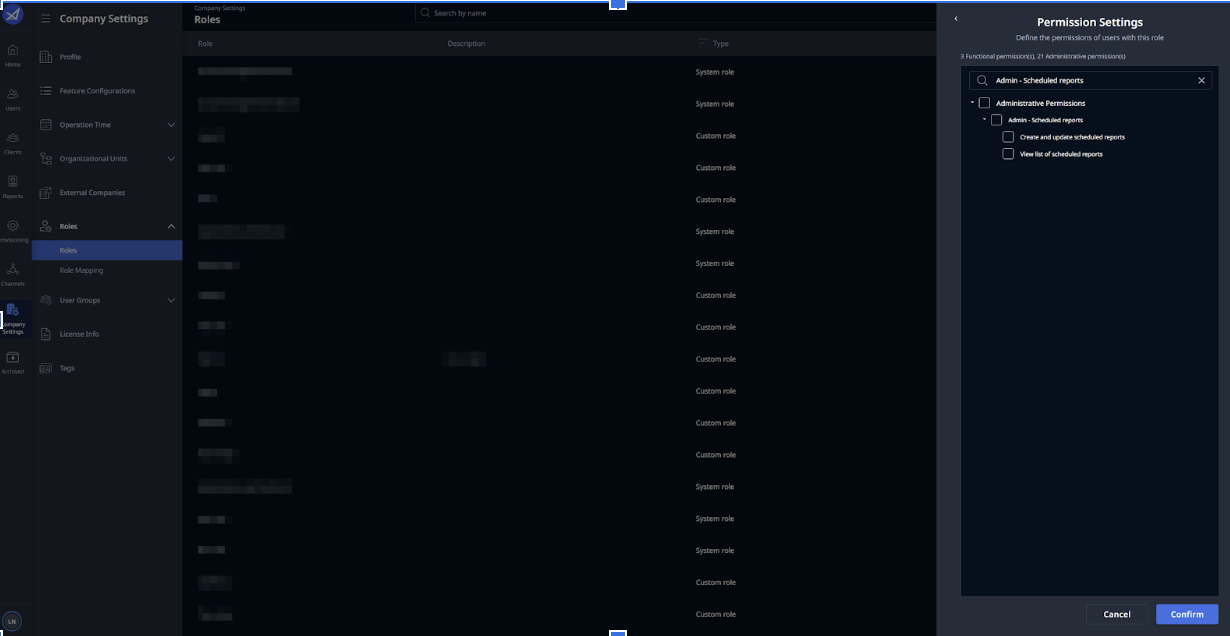
- All permissions under Admin - Scheduled reports.
Available Scheduled Report Types
LeapXpert currently supports the following report types:
-
Native channel connection status report (Health check report)
Provides a list of all corporate phone numbers and their integration status with native channels.
➝ See: WhatsApp Native connection status reports and iMessage Native connection status reports. (internal link). -
WhatsApp inactivity report
Lists inactive WhatsApp accounts that might impact archiving.
➝ See: WhatsApp Native inactivity reports. (internal link). -
Chat Usage report by Company (no longer supported)
-
Chat Usage report by Rooms
Shows total messages sent/received per chat room.
➝ See: WhatsApp Native usage reports, iMessage Native usage reports, Network-based SMS Native chat usage reports (internal link) (from version 2.4.1 onwards). -
Chat Usage report by Users
Shows total messages sent/received per User within a pre-configured period of time.
➝ See: WhatsApp Native usage reports, iMessage Native usage reports, Network-based SMS Native chat usage reports (internal link) (from version 2.4.1 onwards). -
Communication Compliance report
Provides a daily summary of Data Leakage Prevention (DLP) violations and Room Condition violations.
➝ See: Communication compliance reports. (internal link). -
WhatsApp and iMessage Native Irregularities report
Summarizes events that cause native channels to stop archiving.
➝ See: WhatsApp Native irregularities reports, iMessage Native irregularities reports. (internal link). -
WeCom Native Irregularities report
Summarizes irregular communication events in WeCom rooms, such as:- Unusual client statuses
- Anonymous contacts detected in the chat room.
- Group messages will not be archived as selected by the client. ➝ See: WeCom Native irregularities reports (internal link). (From version 2.6.0 onwards, filterable per Org Unit)
-
Archiving Export Email Summary report
Summarizes archiving export emails sent to the archival system within a pre-configured period of time. The report includes the total number of emails sent, along with a .csv file containing detailed information about each exported email. ➝ See: Export task email summary reports (SMTP protocol) (internal link). -
Room Metadata report
Provides details of all governed chat rooms.
➝ See: Chat rooms metadata Scheduled Report (internal link).
Notes
- Not all reports are configurable via the Org Admin portal. Contact Customer Support if you don’t see a required type.
- From version 2.3.2 onwards, multiple schedules per report type are supported.
- A company can have up to 100 active scheduled report tasks.
Available Intervals
The table below explains how Scheduled Reports operate depending on configuration:
| Option | Allowed Values | How it Works | Example |
|---|---|---|---|
Every day at hh:mm | Any time | Runs once daily at the set time. | Daily at 06:30 → Report covers data from 06:30 yesterday to 06:30 today. |
Every X hours starting at hh:mm | 1, 2, 3, 4, 6, 12 | Repeats daily at set intervals. | Every 4 hours starting at 06:30 → Reports at 06:30, 10:30, 14:30, 18:30. |
Every week on weekday at hh:mm | Mon–Sun | Runs weekly at the set day/time. | Every Monday at 06:30 → Covers data from 06:30 last Monday to 06:30 this Monday. |
Every X months on day dd at hh:mm | 1–28 | Runs monthly at the chosen date/time. | Every 3 months on 1st at 06:30 → Runs on Feb 1, May 1, Aug 1, Nov 1. |
Create a Scheduled Report
To configure a scheduled email/FTP report:
- Sign in to the Organization Admin.
- Navigate to Provisioning > Alerts & Reports > Scheduled Reports.
- Select Create Scheduled Report.
- The Create Scheduled Report dialog opens.
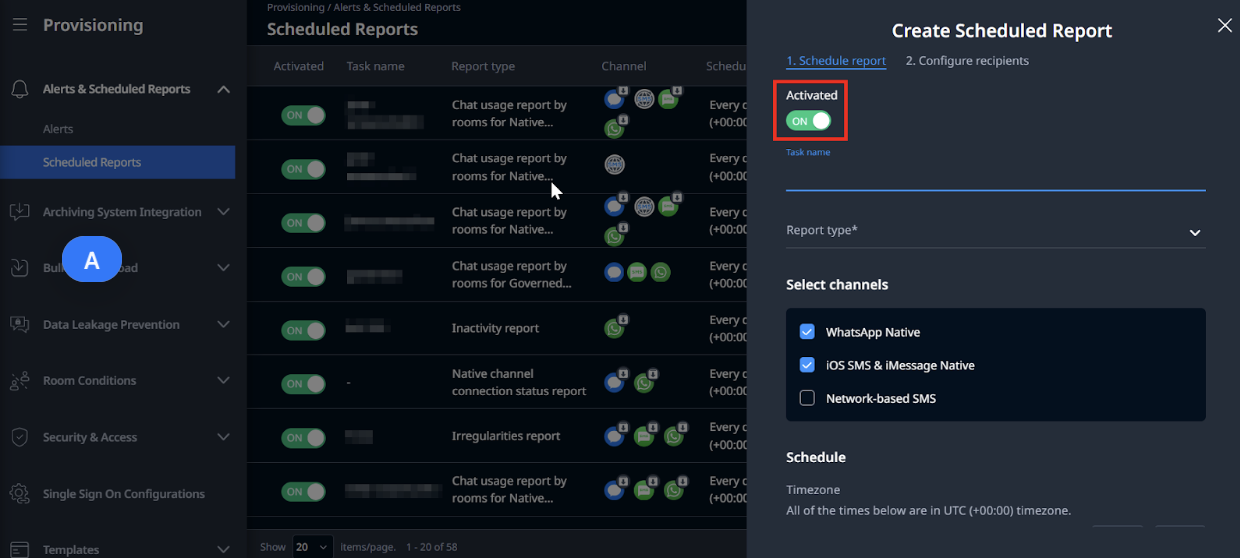
From version 2.4.1 onwards, the Activated toggle defaults to ON (no need to enable manually).
-
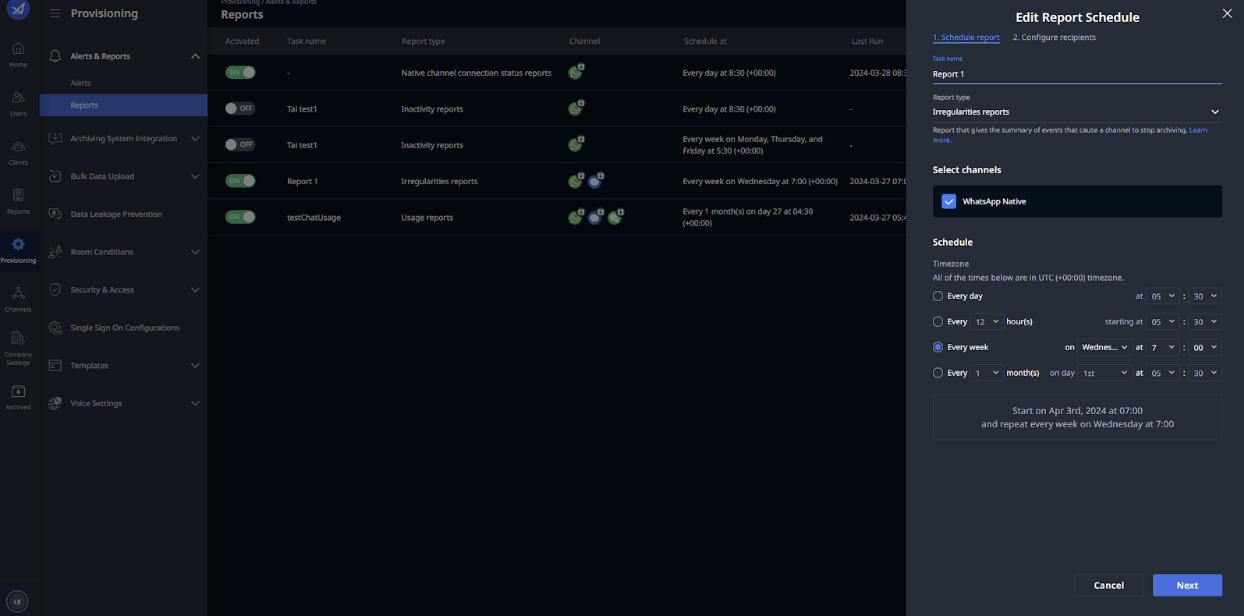
In the Schedule report tab, configure:
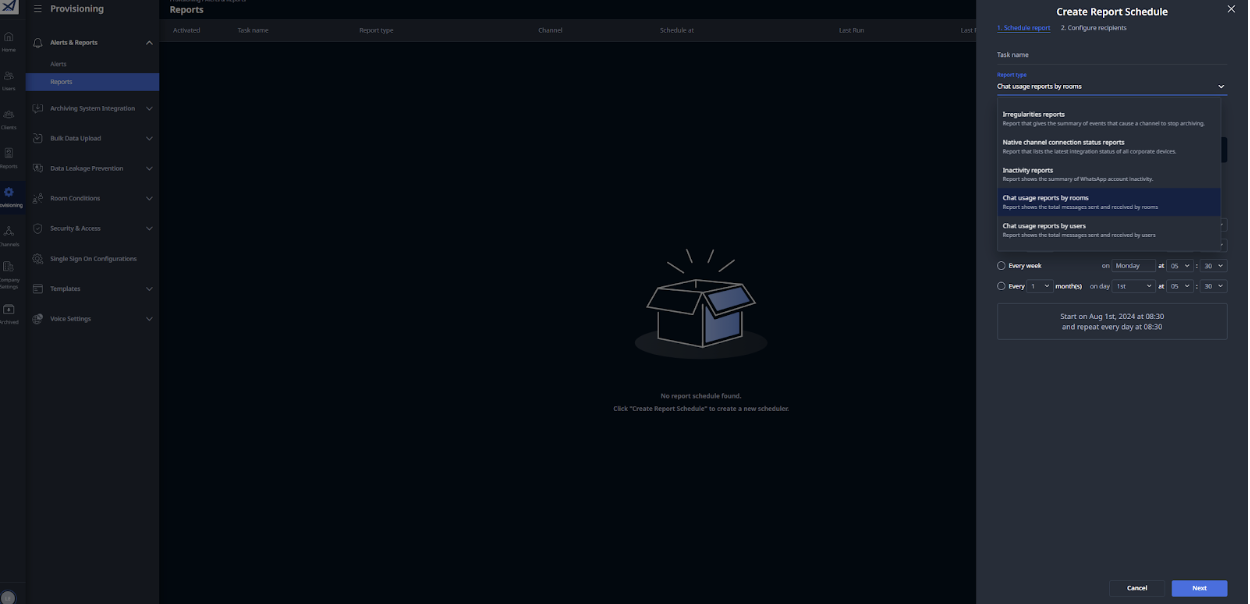
- Task name: name of the task.
- Report type: select from Available types.
- Select channels: choose channels to extract data.
- Select the schedule: configure intervals (see Available intervals).
-
Click Next to configure recipients.
-
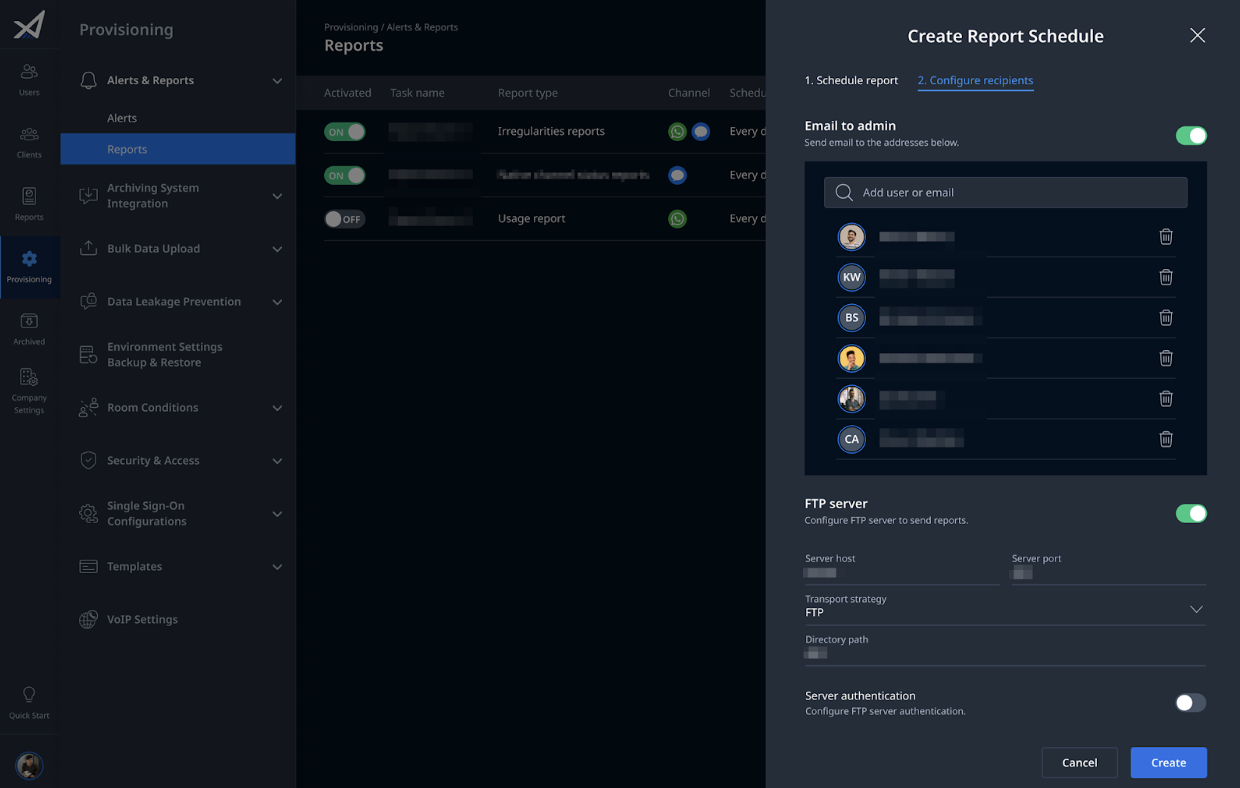
In the Configure recipients tab, choose methods:
- Email to admin: enter recipient’s email(s). Use the trash icon to remove addresses.
- FTP server (only for Native channel status reports): provide:
- Host & Port
- Transport: SFTP or FTP
- Authentication: Username/password
- Proxy (optional). Input credentials for the above methods for server authentication and connectivity. Disable the method that does not apply to you.
-
Enter credentials for authentication and connectivity.
-
Click Save.
✅ You have successfully created a Scheduled Report.
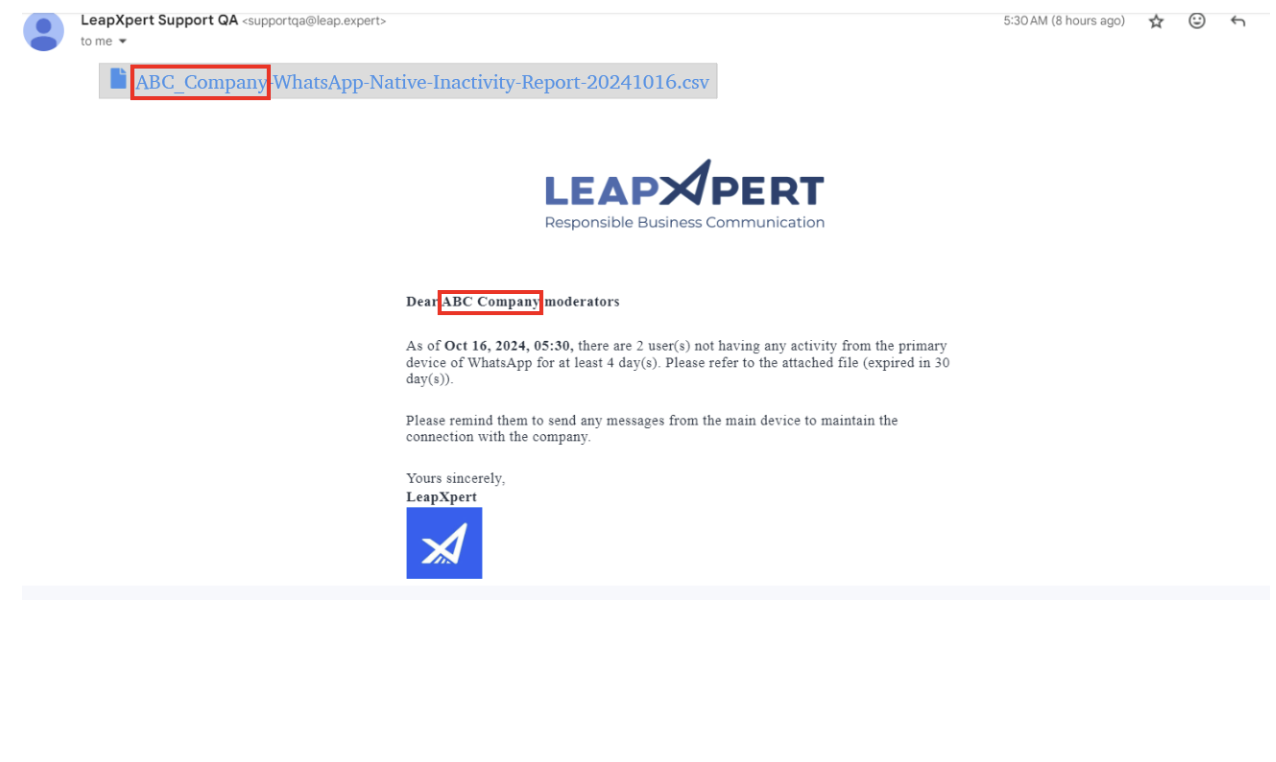
From version 2.4.1, the company (tenant) name is displayed in the email content and
.csvfile.
Edit a Report Schedule
⚠️ Reports in Running status cannot be edited.
To edit:
- Sign in to Organization Admin.
- Go to Provisioning > Alerts & Reports > Scheduled Reports.
- Select Edit (pencil icon) for the report.
- Update fields as required.
- Click Save.
Download and View Reports
- When receiving a report email, users must log in to the Org Admin portal to download.
- Downloading requires appropriate permissions.
- Without them, users will see an error message.
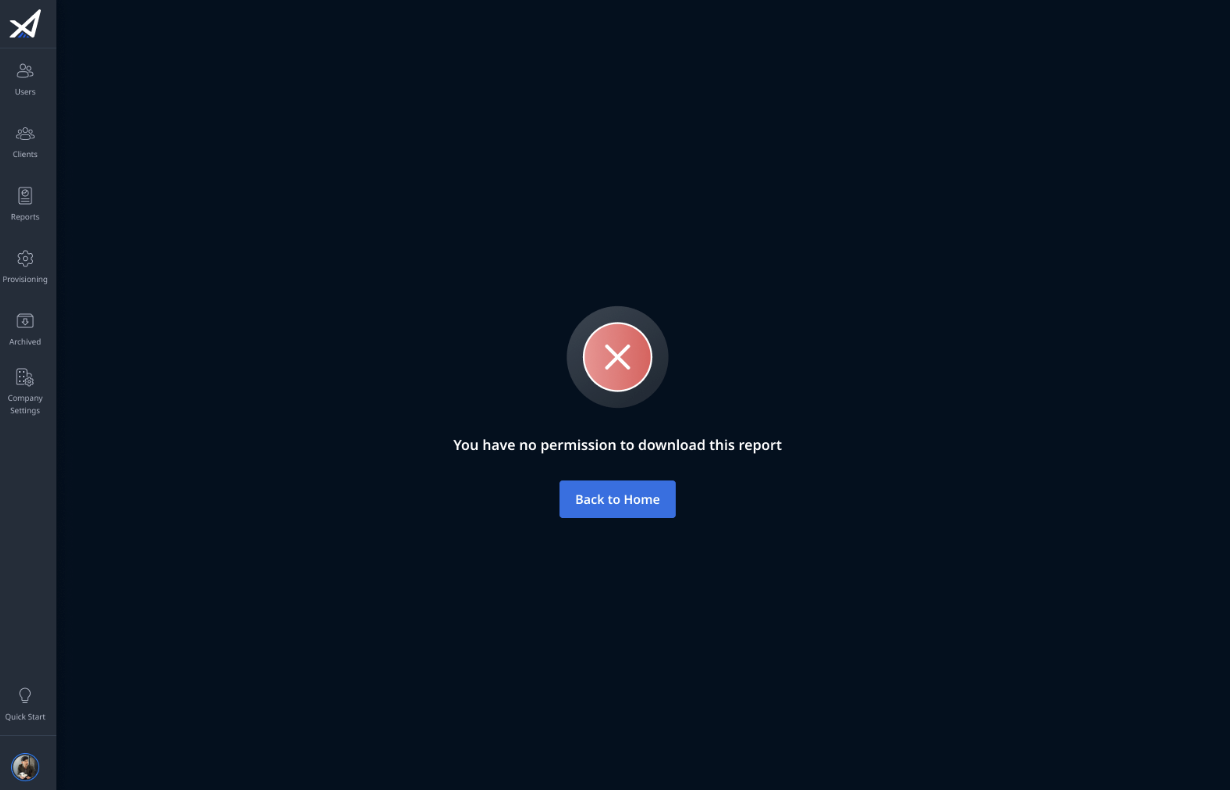
- When we upgrade your environment to version 2.3.1, a role
scheduled-reports.viewerwill be automatically created and assigned to users whose email addresses are configured as recipients of any scheduled reports. The role consists of following permissions that allow users to download reports. All those permissions are included in the Admin - Scheduled reports permission.
| Permission | Type | Description |
|---|---|---|
| Download Native Channel Connection Status report | ADMINISTRATIVE | Allow download Native Channel Connection Status report sent via email |
| Download inactivity report | ADMINISTRATIVE | Allow download Inactivity report sent via email |
| Download Usage By Company report | ADMINISTRATIVE | Allow download Chat Usage By Company (Metrics) report sent via email. <br> Note: This report is temporarily not on the UI now. |
| Download Communication Compliance report | ADMINISTRATIVE | Allow download Communication Compliance report sent via email.<br> Note: This report is visible on the Org Admin portal from version 2.3.2 onwards. |
| Download Usage by Rooms report | ADMINISTRATIVE | Allow download Chat Usage By Rooms report sent via email |
| Download Usage by Users report | ADMINISTRATIVE | Allow download Chat Usage By Users report sent via email |
| Download WeCom irregularities report | ADMINISTRATIVE | Allow download WeCom Irregularities report sent via email.<br> Note: This report is temporarily not on the UI now. |
| Download Other Native Channel irregularities report | ADMINISTRATIVE | Allow download Other Native Channel Irregularities report sent via email |
| Download Archiving Export Email Summary report | ADMINISTRATIVE | Allow download Archiving Export Email Summary report sent via email. <br> Note: From version 2.4.1 onwards, users can configure this type of report on the Org Admin portal. |
Limitations
scheduled-reports.viewercannot be assigned to group emails (admins must assign manually per user).- If your company uses SSO, automatic role assignment may be overridden at login.
➝ Recommendation: create a custom role with scheduled report permissions and map roles for all recipients. - Reports created before this update may need rescheduling to align with new features.