Onboard a client profile with a WhatsApp official account pool (inbound flow)
From LeapXpert version 2.4.1 onwards, we have supported the MCP mode for client profile onboarding with a WhatsApp official account pool. This flow is different from Onboard a prospect with a WhatsApp official account pool.
This article provides a detailed instruction to help you onboard a client profile to the WhatsApp official account pool (also known as the inbound flow).
Before you start
- The company needs to contact LeapXpert to comprehensively configure this inbound flow.
- Your company admin has configured a WhatsApp official account pool.
- The admin has enabled this feature configuration: Auto promotion of NVC (non-verified client). However, currently we don't use the NVC term, instead, we refer to this as "client profile".
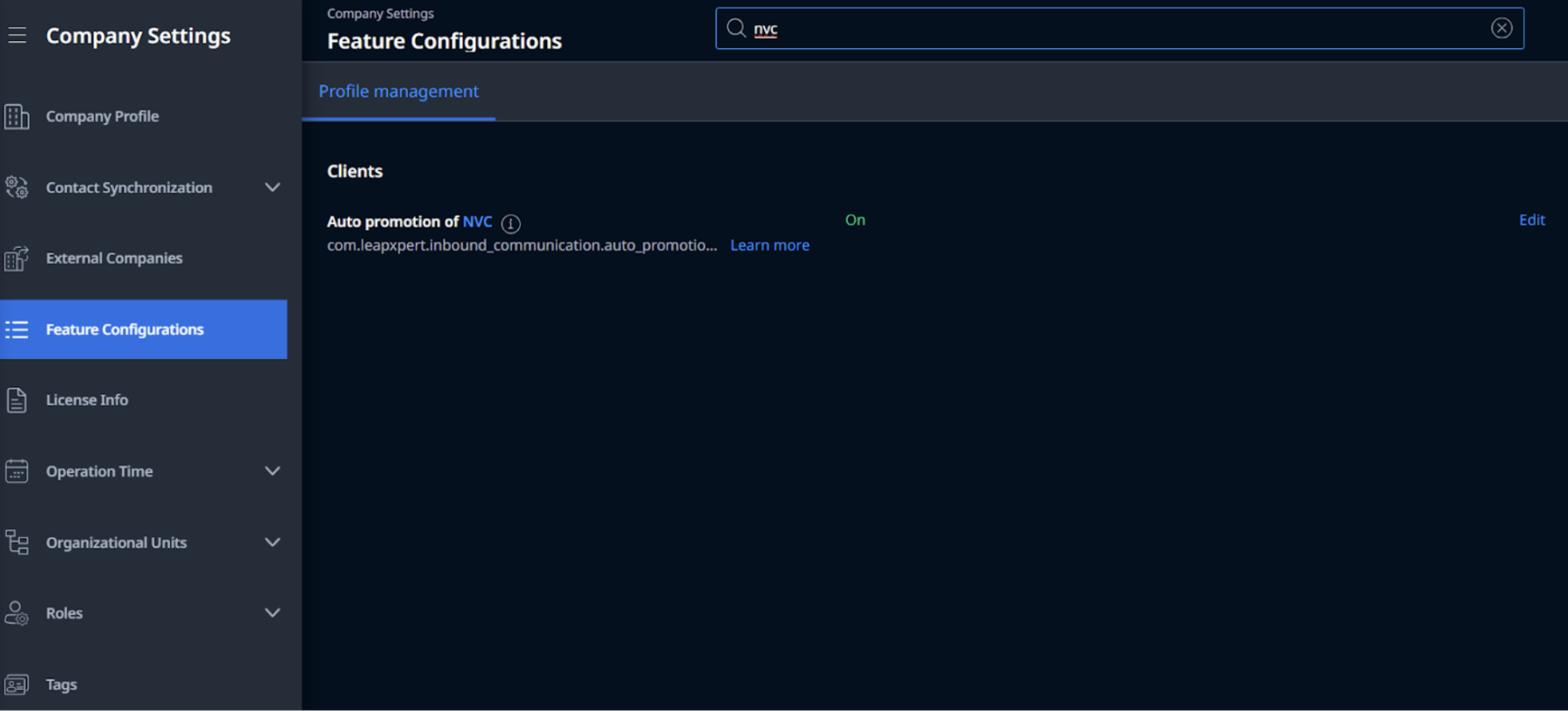
- You need to set up an extension for the user. Otherwise, you cannot generate the QR code for that user.
- To set up the extension, refer to Manage extensions.
The company provides the client following information:
-
Option 1: User's QR code.
-
Option 2: Official Account number & Extension. If you choose option 1, there is no need to provide this information.
-
Official Account number: the primary WhatsApp official account number of your company. This is for clients to contact.
-
Extension: a unique string to identify the company employee to connect to, for example,
#michael.- You need to contact your company admin to follow this instruction to add an extension: Manage extensions.
Note: The extension is essential for both options mentioned above.
Understand the definition of primary accounts and secondary accounts
For your reference, see also:
- Official account pools (internal link)
- Onboard a prospect with a WhatsApp official account pool (internal link)
Onboard a client profile to WhatsApp official account pool: step-by-step instructions
1. The client sends a request
The client sends a request by two approaches:
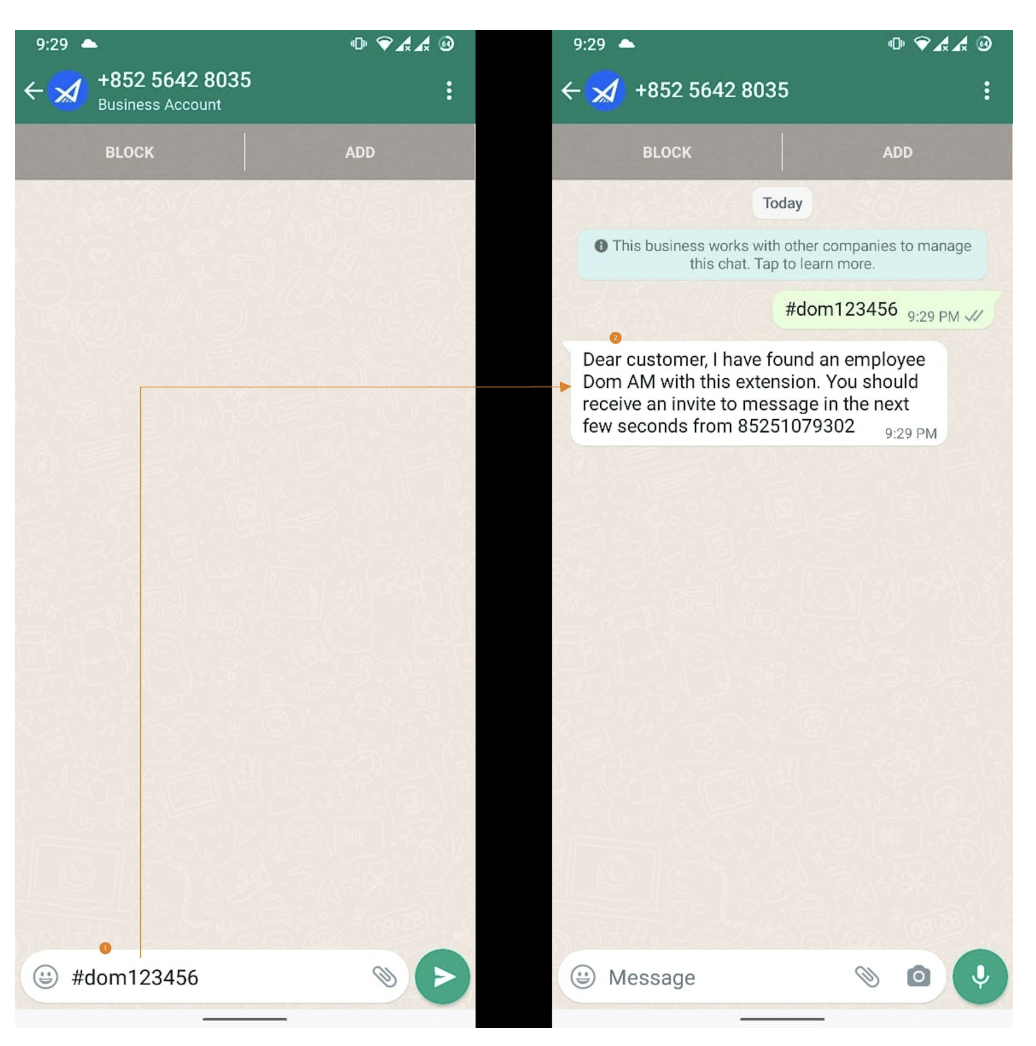
- Sending a message to the WhatsApp primary number with the extension.
- Scanning the QR code shared by the company employees (AM users).
2. System checks for users
- If there is a user that matches the extension, search for any existing 1-1 chat rooms.
- If the user is not found, the system sends a "Not Found" message, and the process ends.
3. Check for existing chat rooms
- If an existing 1:1 chat room with the user is active, a reminder message is sent to that room.
- If no active chat room exists, the system looks for a visible client profile (CP).
4. Finding a visible client profile
- If a CP with a phone number exists and there is only 1 client profile assigned to the user, the system checks if any secondary phone number is available.
- If there are many client profiles, the system picks 1 client profile randomly.
- If no CP is found, the system creates a new client profile.
5. Secondary number checking
- If a secondary number is available, a chat room is created, and an invitation is sent.
- If a secondary number is unavailable, an error message is sent via the Primary number.
6. Complete
- A message with user info is sent.
- The process ends with a user assigned to the client profile, and a chat room is activated.
Special cases
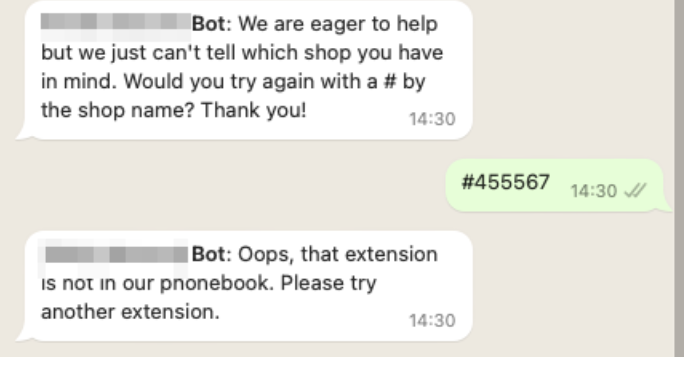
- If the client enters a text without the extension, they will receive an automatic reply.
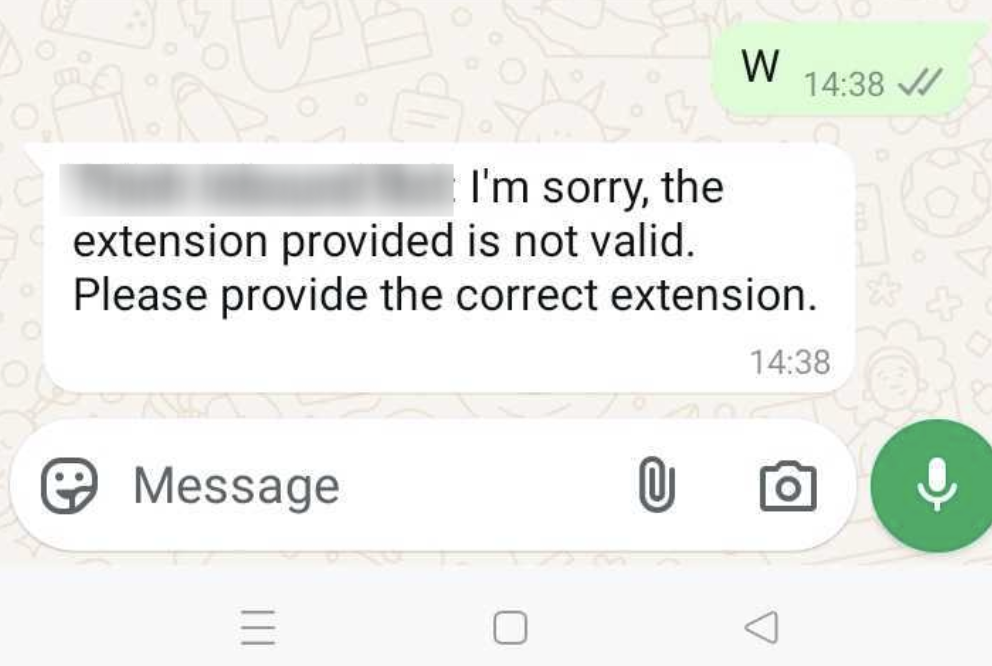
- If the client enters the incorrect extension, they will receive an error message.
Share the QR code with the client (for AM users)
AM users refer to this section to know how to share the QR code with the client via Leap Work web, Leap Work mobile, and Leap Work for Teams.
1. Leap Work web
To get the QR code on Leap Work web, do as follows:
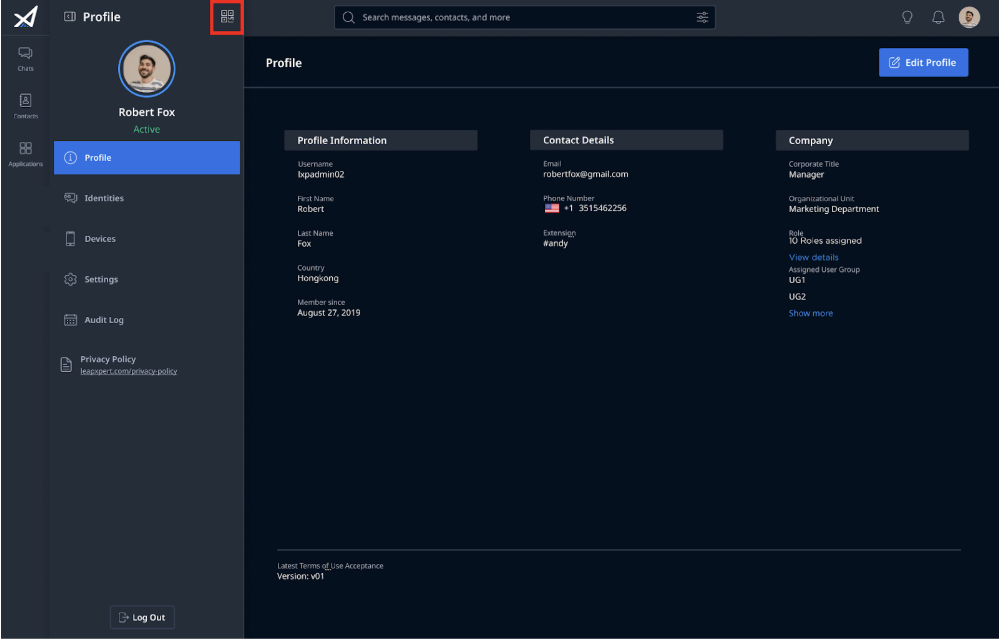
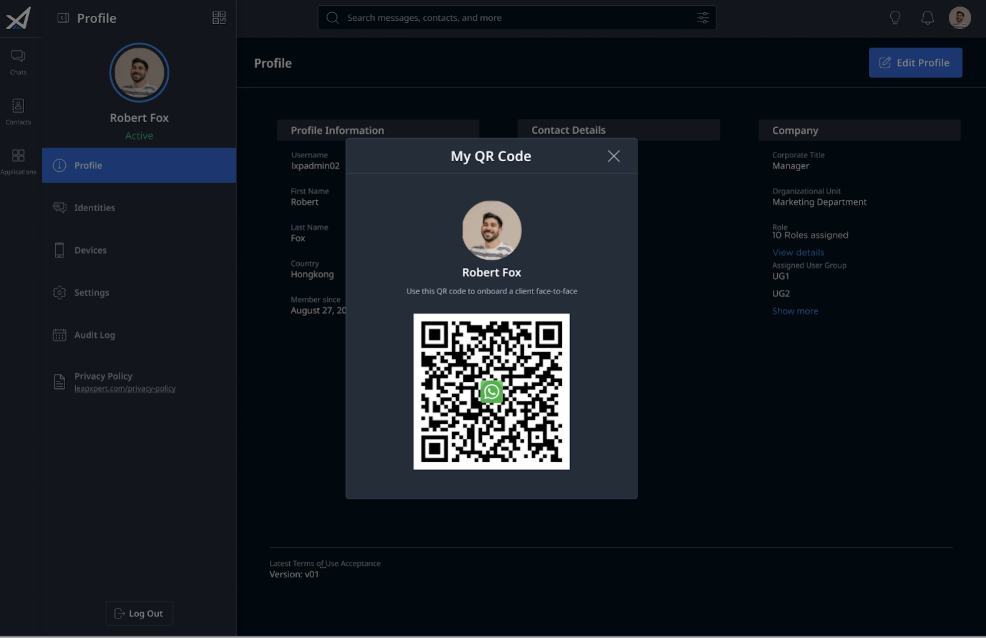
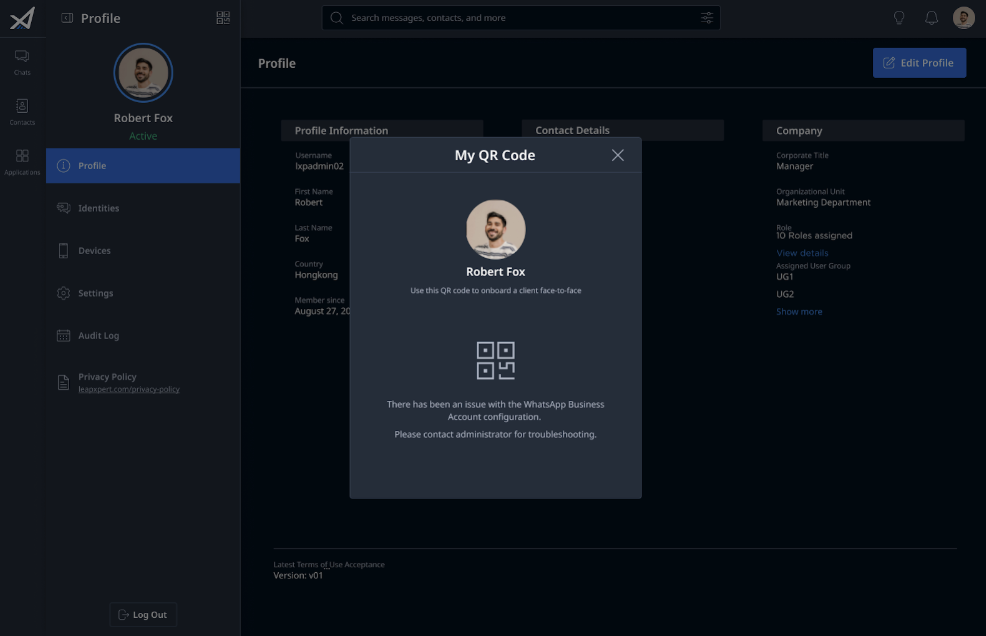
- Sign in to the Leap Work web, go to Profile, and click the QR code icon.
- The client uses WhatsApp to scan the QR code to initiate the conversation with the user.
Note:
- If you haven't had an extension, you cannot get the QR code. Please contact your company admin to follow this instruction to add an extension.
- Once the QR code appears, share it with a client.
- The client uses WhatsApp to scan the QR code to start the conversation with the user.
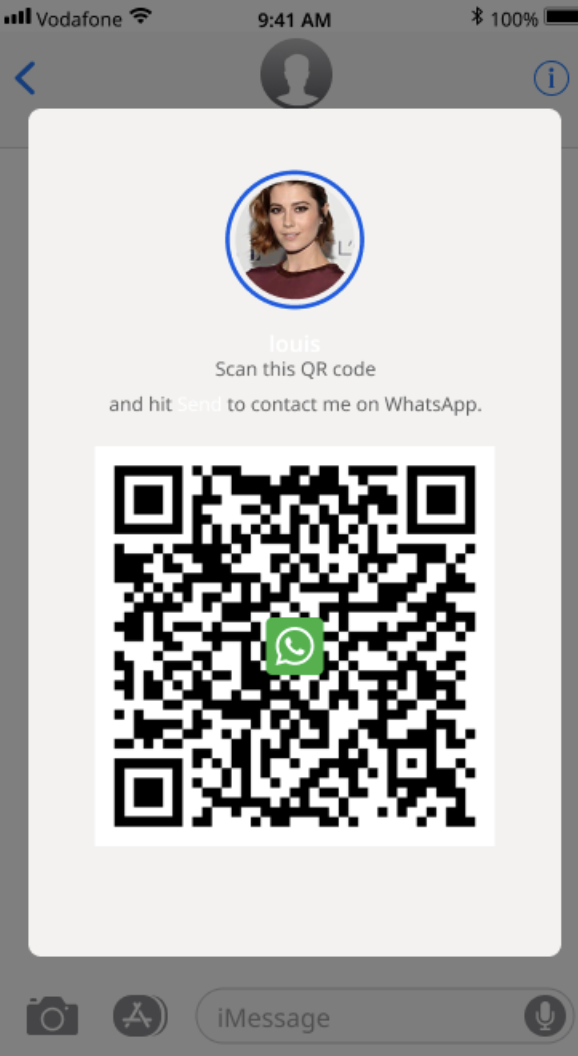
- If there is no extension, the user cannot see the QR code on Leap Work.
- If there is an issue with the WhatsApp Business Account, you will see the following screen:
2. Leap Work mobile
To get the QR code on Leap Work mobile, do as follows:
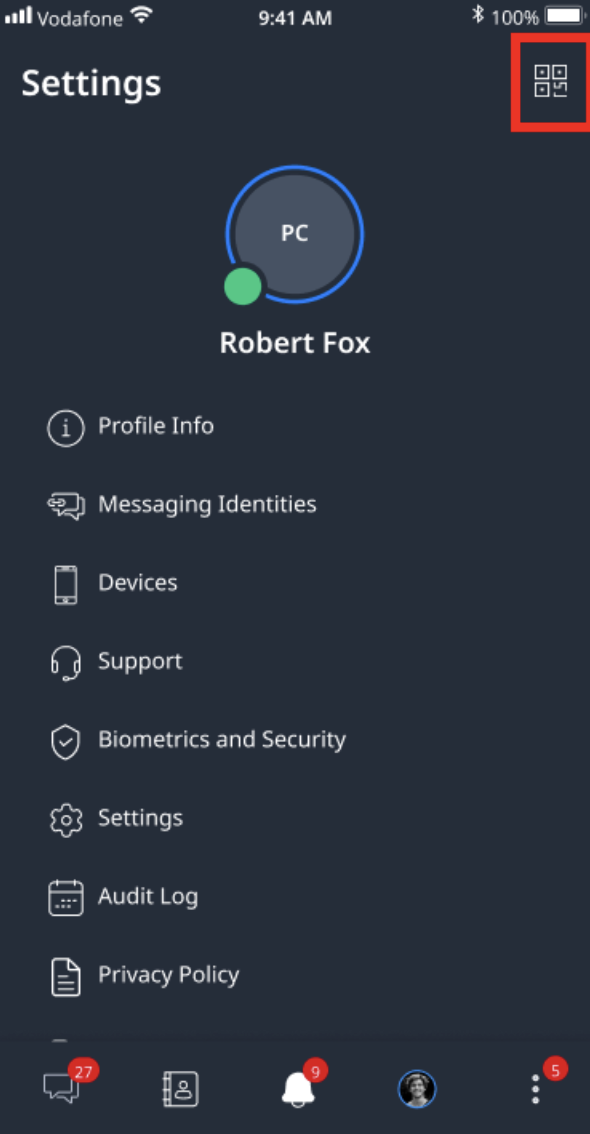
- Sign in to the Leap Work mobile, go to the profile screen, and click the QR code.
- Once the QR code appears, share it with a client.
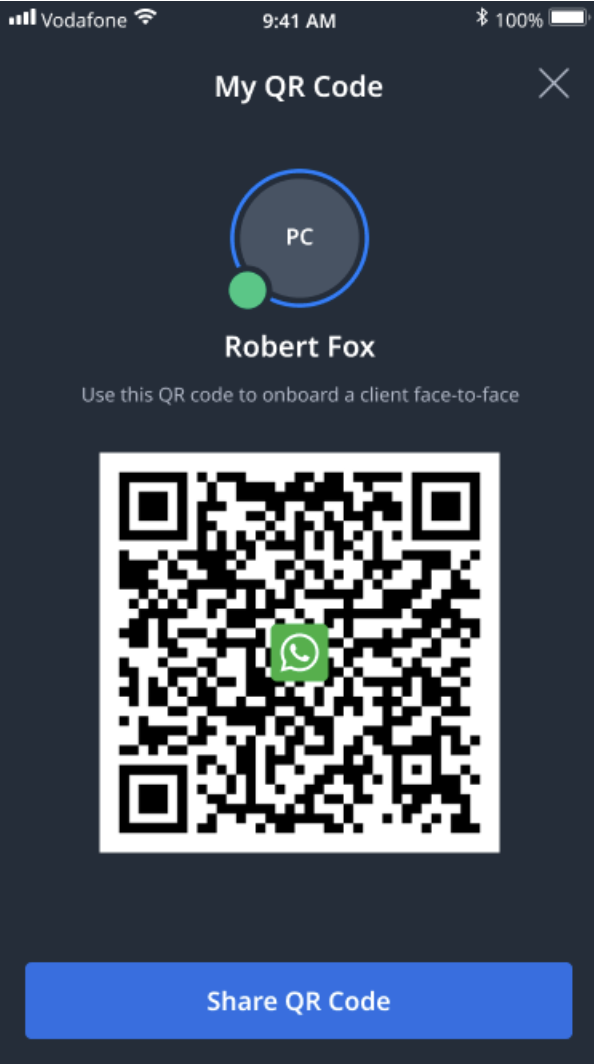
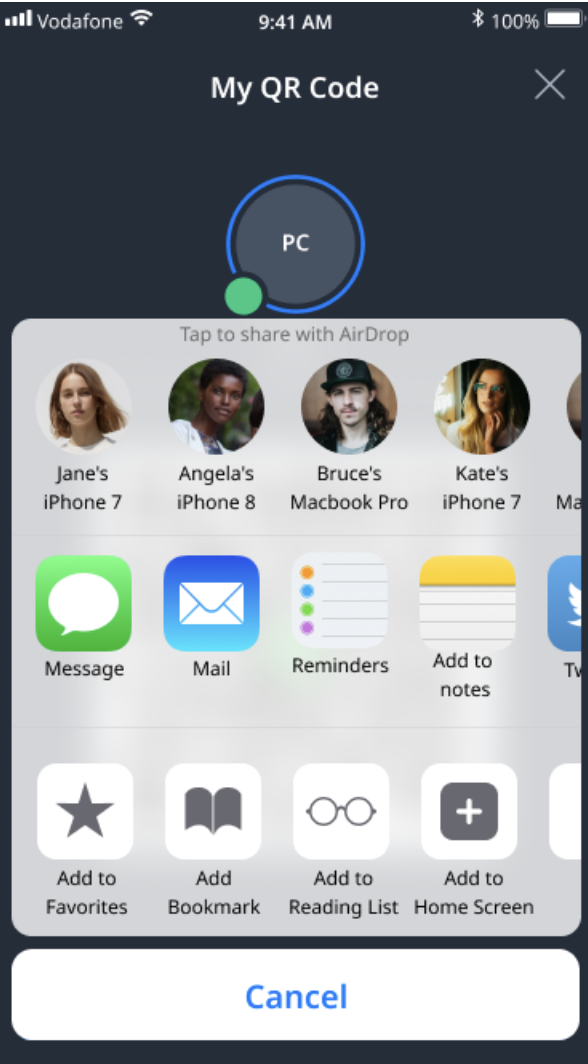
- The client uses WhatsApp to scan the QR code to start the conversation with the User.
Note:
- If there is no extension, the user cannot see the QR code on Leap Work mobile.
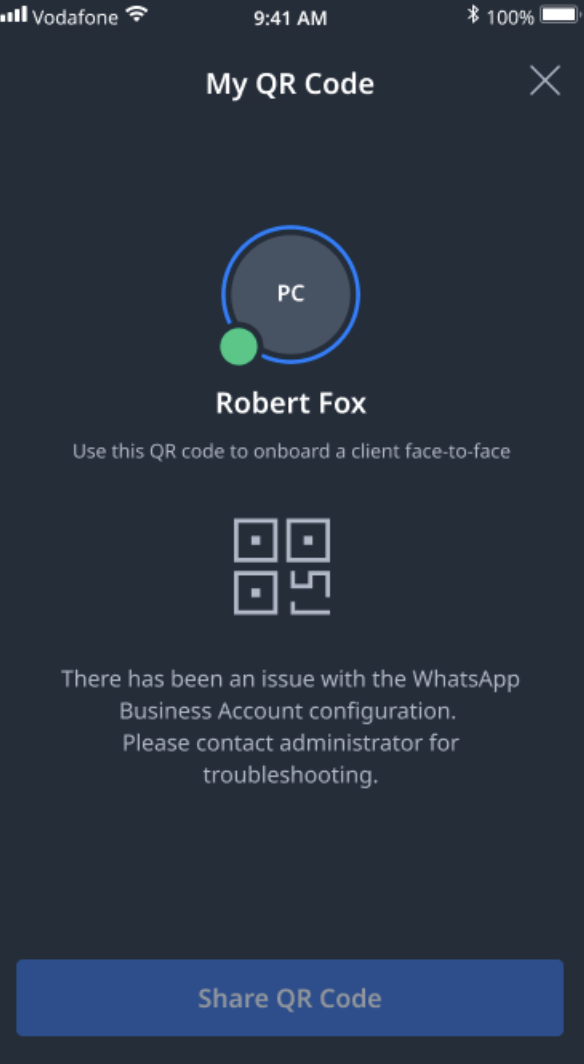
- If there is an issue with the WhatsApp Business Account, you will see the following screen.
3. Leap Work for Teams
To get the QR code on Leap Work for Teams, do as follows:
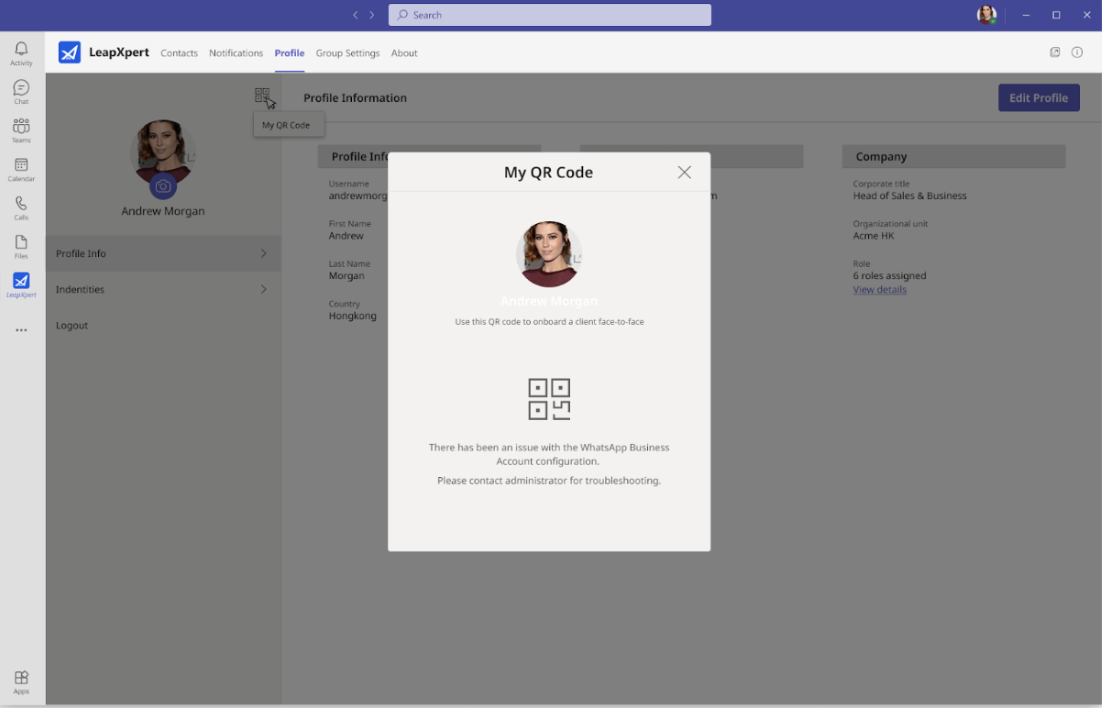
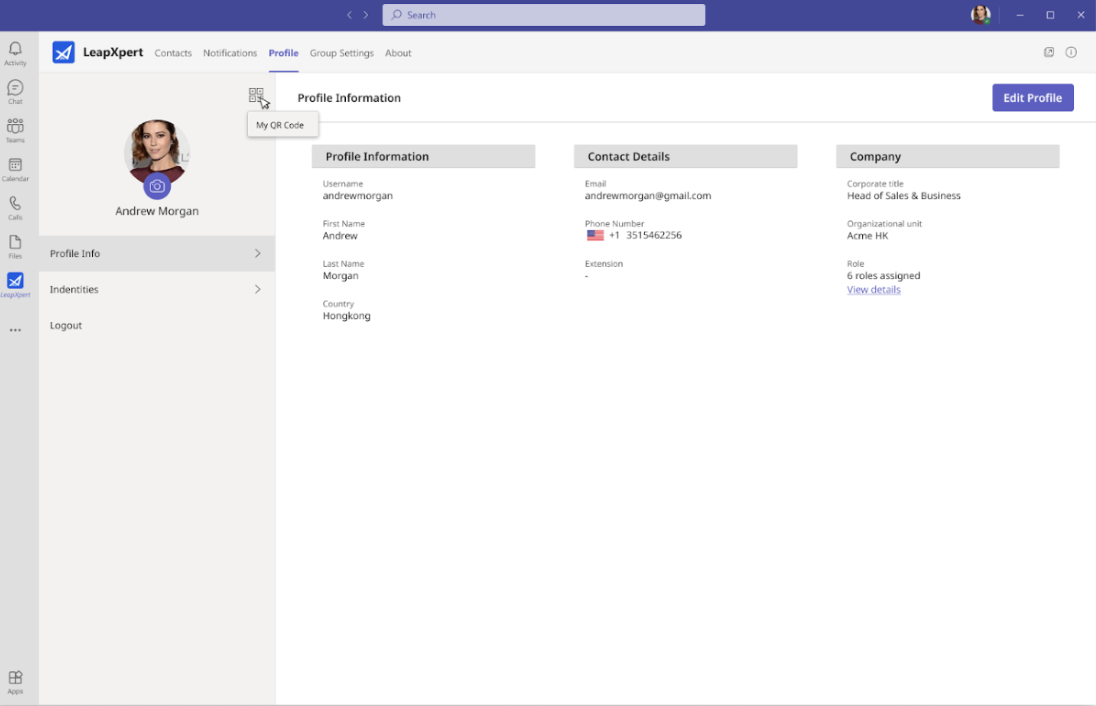
- Sign in to the Leap Work for Teams, go to Profile, and click the QR code.
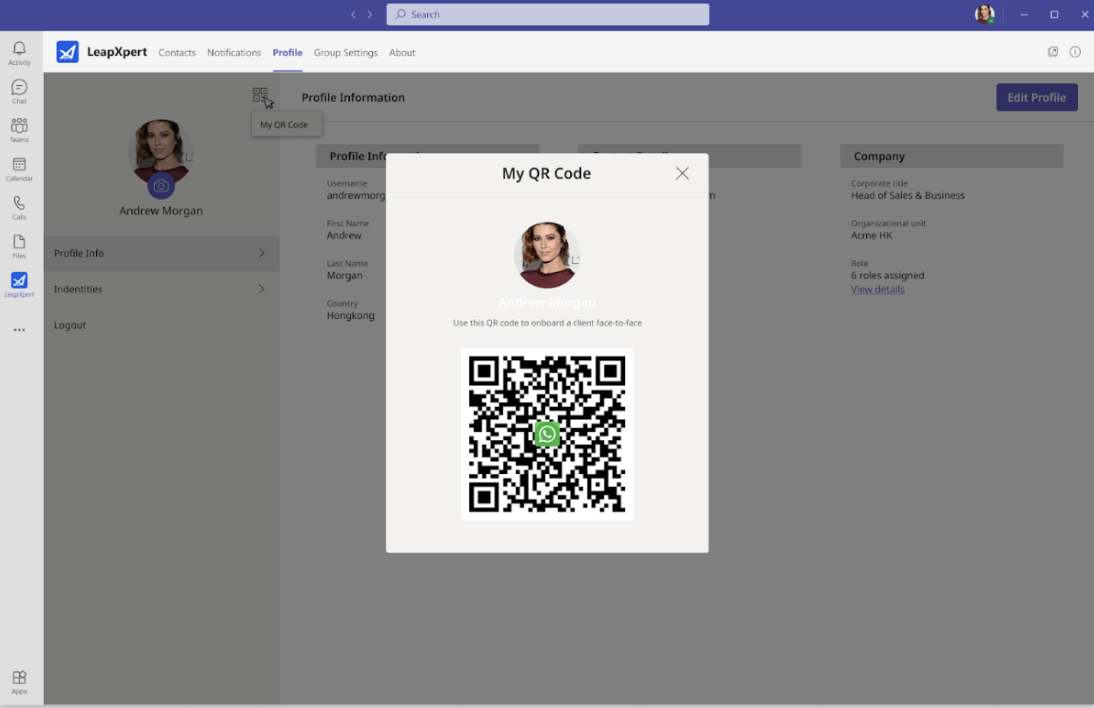
- Once the QR code appears, share it with a client.
Note:
- If there is no extension, the user cannot see the QR code on Leap Work.
- If there is an issue with the WhatsApp Business Account, you will see the following screen.